
Setup
You can add and manage the labs and testing centers that appear on the Lab, Imaging, Cardiac, Pulmonary, and Sleep Order Forms directly from Settings > Labs & Centers. Any user with access to Practice Settings can manage these entries, and changes apply to the entire practice. The Labs & Centers page has a tab for each center type along the top of the page: Labs, Imaging, Cardiac, Pulmonary, and Sleep. Select the tab that matches the type of center you want to manage.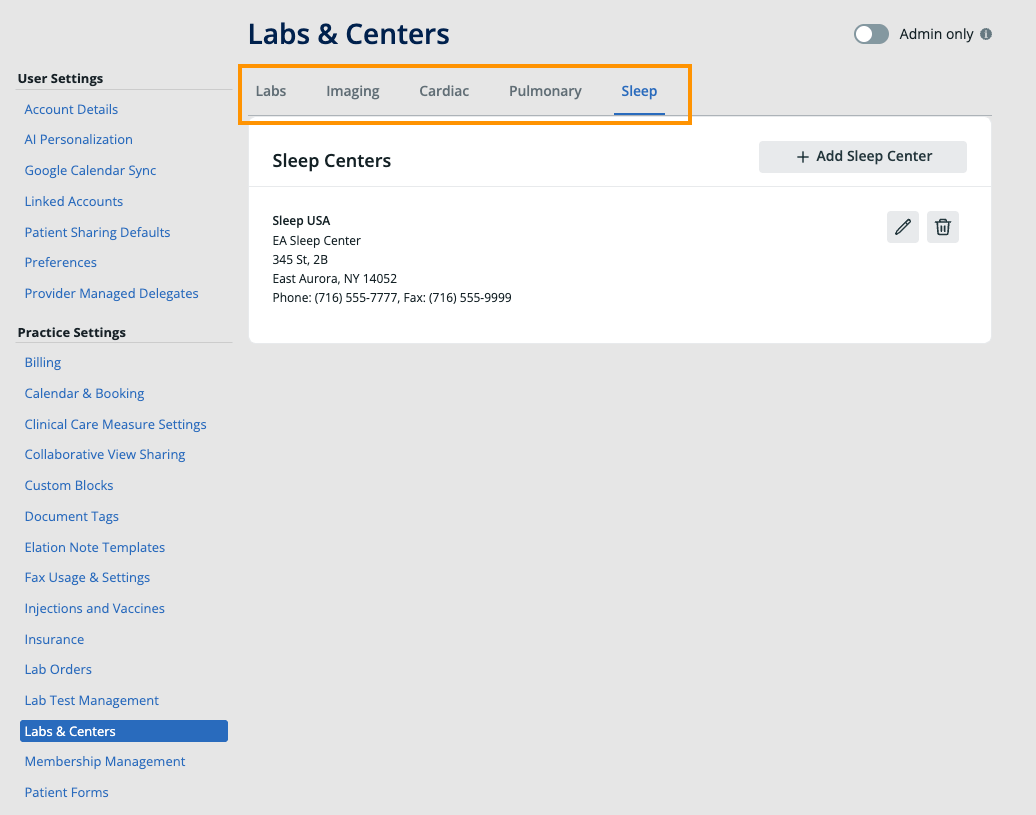
Add a center
- Click the gear icon in the upper right of your Elation account and select Settings.
- Under Practice Settings, click Labs & Centers.
- Click the tab for the type of center you want to add: Labs, Imaging, Cardiac, Pulmonary, or Sleep.
- Click + Add [Center Type] (for example, + Add Sleep Center).
- Enter the center’s details:
- Company Name (required)
- Location Name (required)
- Address, Suite, City, State, Zip
- Phone and Fax
- Click Save.
Edit a center
- Go to Settings > Labs & Centers and select the tab for the center type.
- Click the pencil icon next to the center you want to update.
- Update the fields as needed.
- Click Save.
Delete a center
- Go to Settings > Labs & Centers and select the tab for the center type.
- Click the trash icon next to the center you want to remove.
- Confirm the deletion.
Deleting a center removes it from the Center dropdown on the matching Order Form. Signed orders that were previously sent to that center are not affected.
Show or hide Elation default centers
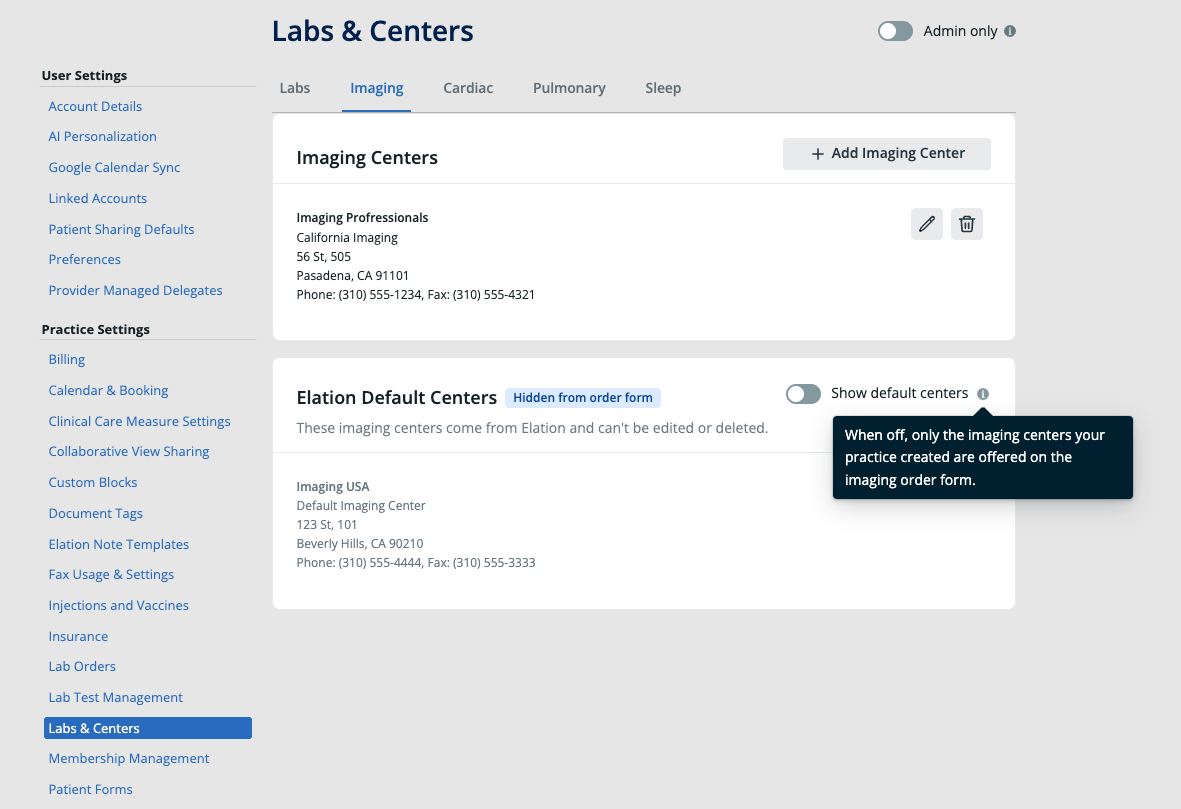
Elation provides a set of default centers on each tab. You cannot edit or delete these default centers, but you can hide them from the Order Form so users only see the centers your practice created.- Go to Settings > Labs & Centers and select the tab for the center type.
- In the Elation Default Centers section, use the Show default centers toggle.
- On — Elation default centers appear in the Center dropdown on the matching Order Form.
- Off — only the centers your practice created appear on the Order Form. The section label updates to Hidden from order form.
Manage centers from an Order Form
You can also open the Labs & Centers page directly from any of the Imaging, Cardiac, Pulmonary, or Sleep Order Forms. Click Manage Centers to the right of the Center field to jump to the matching tab in Settings > Labs & Centers.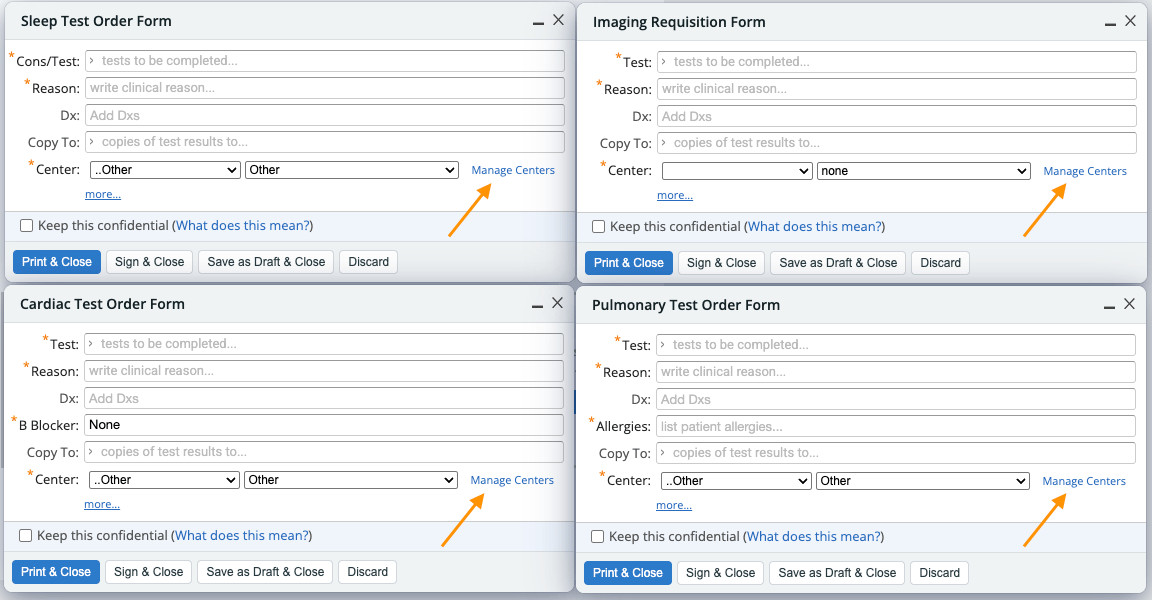
Frequently Asked Questions
Who can add or edit labs and centers?
Any user with access to Practice Settings can manage the entries on the Labs & Centers page. Changes apply to every user at the practice.Do I still need to contact Elation Support to add a center?
No. Practices manage their own imaging, cardiac, pulmonary, and sleep centers through Settings > Labs & Centers. Contact Elation Support only if you need to set up an electronic results interface with an integrated lab or imaging vendor.Where do the centers I add appear?
Centers you add appear in the Center dropdown on the matching Order Form. Imaging centers appear on the Imaging Order Form, cardiac centers on the Cardiac Order Form, and so on. Select the company, then choose a specific location.Can I add multiple locations for the same center?
Yes. Add a separate entry for each location, using the same Company Name and a distinct Location Name for each site. Users can then select the location from the second dropdown on the Order Form.What happens to orders already sent to a center I deleted or hid?
Nothing. Signed orders that were previously sent to a center are not affected when you delete the center or hide the default centers. Only new orders are affected.Related Articles
- Order Forms Guide — Ordering imaging (radiology) tests with the Imaging Order Form
- Order Forms Guide — Ordering cardiology tests using the Cardiac Order Form
- Order Forms Guide — Ordering pulmonary tests using the Pulmonary Order Form
- Order Forms Guide — Ordering sleep tests using the Sleep Order Form
- Patient Reports Guide — Receiving imaging (radiology) results from imaging interfaces
- Lab Orders & Results — Managing lab vendors
- Order Forms Introduction — Ordering medical tests for your patients