> ## Documentation Index
> Fetch the complete documentation index at: https://help.elationhealth.com/llms.txt
> Use this file to discover all available pages before exploring further.
# Self-Service API Credential Management
> Practice admins can create and manage API credentials directly from practice settings.
Self-service credential management is available now in the **sandbox** environment. In **production** it is available on request — contact Elation Support to have it enabled for your practice.
## Overview
Self-Service API Credential Management lets practice admins create, scope, and revoke API credentials directly from practice settings, without contacting Elation Support. You can issue keys for either the Elation APIv2 or the FHIR R4 API, assign scopes that control exactly what each key can read or write, and revoke keys immediately if they are no longer needed or may have been compromised.
## Who can use this
* **Availability:** Sandbox, and production on request
* **Access:** Practice admins
* **Location:** Practice settings
## How to manage API credentials
### Generating API credentials
1. Navigate to **Settings > API Access**.
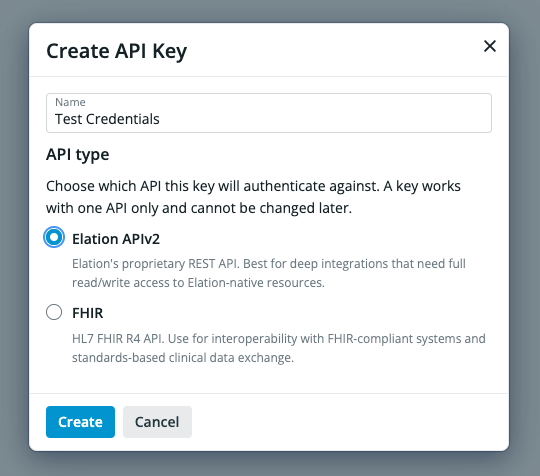
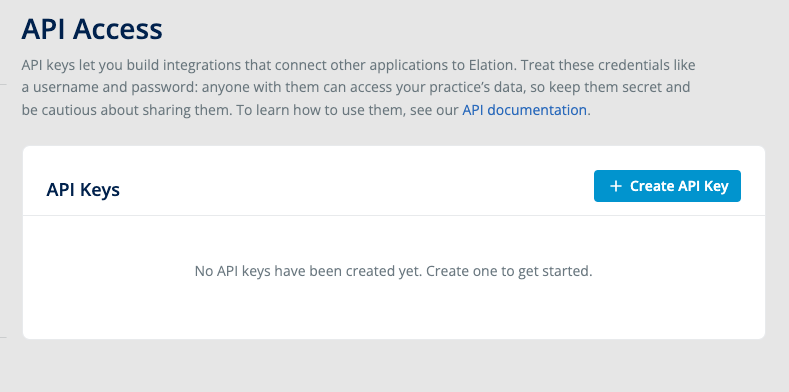 2. Click **+ Create API Key**. In the dialog that appears, enter a **Name** for the key and select the **API type** — either **Elation APIv2** (Elation's proprietary REST API) or **FHIR** (HL7 FHIR R4 API). The API type cannot be changed after creation.
 3. Click **Create**. You will be shown your **Client ID** and **Client Secret**. Copy these values or click **Download Credentials** to save them to a file.
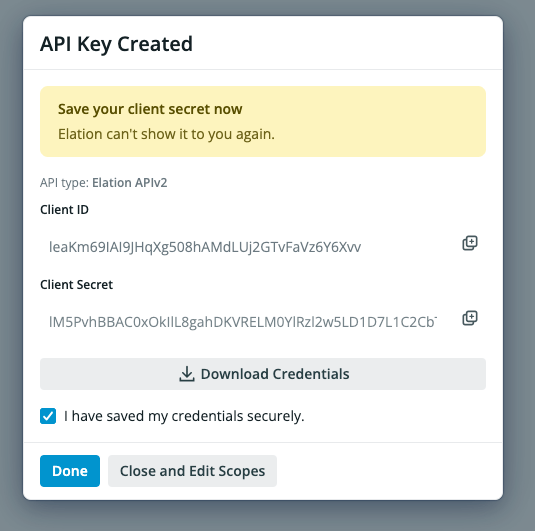 The Client Secret is only shown once. Elation cannot display it again after you close this dialog. Make sure you save it before clicking **Done**.
4. Check the **I have saved my credentials securely** checkbox, then click **Done** to return to the API Access page, or click **Close and Edit Scopes** to configure scopes immediately.
### Managing existing credentials
1. Navigate to **Settings > API Access**. Your existing API keys are listed with their name, API type, Client ID, and creation date.
2. To edit the scopes for a key, click on the 'Scopes' button to open the scope editor.
3. To delete a key, click the trash icon next to the key.
### Selecting scopes
When creating or editing API credentials, you will choose which **scopes** to assign. Scopes control what data the credentials are permitted to read or write. For a full explanation of how scopes work and the available scope options, see [Token Scopes](/articles/rest/overview/scopes).
In the **Edit Scopes** dialog, scopes are organized by API category (e.g., Billing API, Patient Profile API, Scheduling API). Expand each category to select individual scopes, or use the checkbox next to the category name to select all scopes within it. You can also click **Set All to Read-Only** to quickly restrict the key to read-only access across all categories.
The Client Secret is only shown once. Elation cannot display it again after you close this dialog. Make sure you save it before clicking **Done**.
4. Check the **I have saved my credentials securely** checkbox, then click **Done** to return to the API Access page, or click **Close and Edit Scopes** to configure scopes immediately.
### Managing existing credentials
1. Navigate to **Settings > API Access**. Your existing API keys are listed with their name, API type, Client ID, and creation date.
2. To edit the scopes for a key, click on the 'Scopes' button to open the scope editor.
3. To delete a key, click the trash icon next to the key.
### Selecting scopes
When creating or editing API credentials, you will choose which **scopes** to assign. Scopes control what data the credentials are permitted to read or write. For a full explanation of how scopes work and the available scope options, see [Token Scopes](/articles/rest/overview/scopes).
In the **Edit Scopes** dialog, scopes are organized by API category (e.g., Billing API, Patient Profile API, Scheduling API). Expand each category to select individual scopes, or use the checkbox next to the category name to select all scopes within it. You can also click **Set All to Read-Only** to quickly restrict the key to read-only access across all categories.
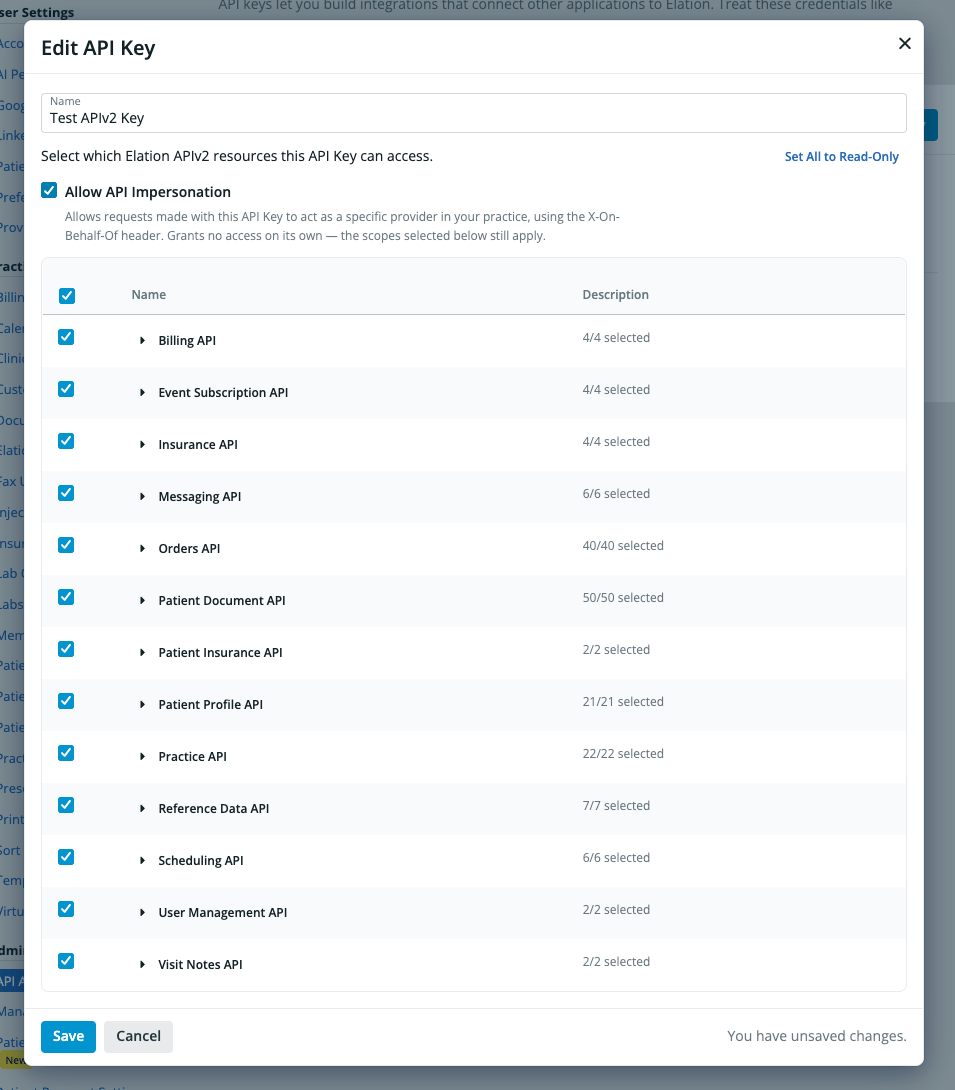 Click **Save** when you are done. Scope changes take effect immediately.
### Allowing API impersonation
For **Elation APIv2** keys, the **Edit Scopes** dialog includes an **Allow API Impersonation** checkbox above the scope list to enable [User Impersonation](/articles/rest/overview/user-impersonation). Checking it adds the `act_as_user` scope to the key, which lets requests made with the key act on behalf of a specific user in your practice using the `X-On-Behalf-Of` header.
Impersonation grants no data access on its own. The key still needs at least one resource scope selected, and the selected scopes still limit what impersonated requests can read or write. A key with only impersonation enabled cannot be saved.
Impersonation is not available for FHIR keys.
### Revoking credentials
If you no longer need a set of credentials, or if you believe they may have been compromised, you can revoke them from the API Access page.
1. Navigate to **Settings > API Access**.
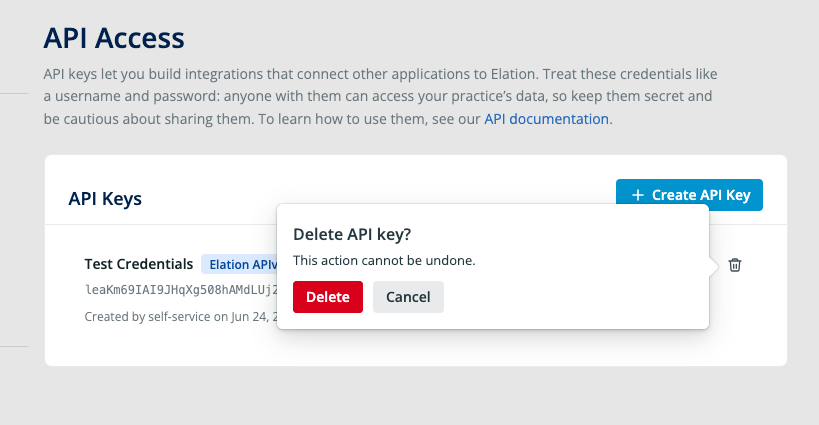
2. Click the trash icon next to the key you want to revoke.
3. A confirmation dialog will appear warning that this action cannot be undone. Click **Delete** to permanently revoke the credentials, or **Cancel** to go back.
Click **Save** when you are done. Scope changes take effect immediately.
### Allowing API impersonation
For **Elation APIv2** keys, the **Edit Scopes** dialog includes an **Allow API Impersonation** checkbox above the scope list to enable [User Impersonation](/articles/rest/overview/user-impersonation). Checking it adds the `act_as_user` scope to the key, which lets requests made with the key act on behalf of a specific user in your practice using the `X-On-Behalf-Of` header.
Impersonation grants no data access on its own. The key still needs at least one resource scope selected, and the selected scopes still limit what impersonated requests can read or write. A key with only impersonation enabled cannot be saved.
Impersonation is not available for FHIR keys.
### Revoking credentials
If you no longer need a set of credentials, or if you believe they may have been compromised, you can revoke them from the API Access page.
1. Navigate to **Settings > API Access**.
2. Click the trash icon next to the key you want to revoke.
3. A confirmation dialog will appear warning that this action cannot be undone. Click **Delete** to permanently revoke the credentials, or **Cancel** to go back.
 Before revoking credentials, confirm that no active integrations depend on them. Any application using revoked credentials will stop working immediately.
## Important Security Considerations
API credentials function like a username and password for your practice's data. Anyone with access to your credentials can read and modify **all of the data in your practice** that the assigned scopes permit.
* **Store credentials securely.** Use a secrets manager or encrypted vault. Do not store credentials in plaintext, in email, or in shared documents.
* **Do not share credentials** through insecure channels such as email, chat, or sticky notes.
* **Revoke credentials immediately** if you suspect they have been compromised.
* **Use the narrowest scopes possible** when creating credentials to limit the impact of accidental exposure.
## Frequently Asked Questions
### Do I need to use self-service credentials, or can I still request them from Elation?
In the sandbox environment, self-service credentials are available to practice admins right away. In production, self-service credential management is available on request — contact Elation Support to have it enabled, or to have production credentials issued for you.
### Can I change the scopes on existing credentials?
Yes. You can edit the scopes assigned to existing credentials at any time. Changes take effect immediately.
### Can I enable user impersonation on self-service credentials?
Yes, for Elation APIv2 keys. Check **Allow API Impersonation** in the **Edit Scopes** dialog. See [Allowing API impersonation](#allowing-api-impersonation).
### What happens if I revoke credentials that an integration is using?
That integration will immediately lose the ability to authenticate with Elation's API. You will need to generate new credentials and update the integration's configuration before it can reconnect.
### I need to integrate with a specific vendor or lab. Should I use self-service credentials?
If you require integration with a named vendor or lab, please contact Elation Support for guidance. Some vendor integrations have specific requirements that may not be covered by self-service credentials.
## Related Articles
* [User Accounts Guide - Administrative privileges](/articles/administrative-privileges)
* [Getting Started (API)](/articles/rest/overview/getting-started)
* [Token Scopes](/articles/rest/overview/scopes)
* [User Impersonation](/articles/rest/overview/user-impersonation)
Before revoking credentials, confirm that no active integrations depend on them. Any application using revoked credentials will stop working immediately.
## Important Security Considerations
API credentials function like a username and password for your practice's data. Anyone with access to your credentials can read and modify **all of the data in your practice** that the assigned scopes permit.
* **Store credentials securely.** Use a secrets manager or encrypted vault. Do not store credentials in plaintext, in email, or in shared documents.
* **Do not share credentials** through insecure channels such as email, chat, or sticky notes.
* **Revoke credentials immediately** if you suspect they have been compromised.
* **Use the narrowest scopes possible** when creating credentials to limit the impact of accidental exposure.
## Frequently Asked Questions
### Do I need to use self-service credentials, or can I still request them from Elation?
In the sandbox environment, self-service credentials are available to practice admins right away. In production, self-service credential management is available on request — contact Elation Support to have it enabled, or to have production credentials issued for you.
### Can I change the scopes on existing credentials?
Yes. You can edit the scopes assigned to existing credentials at any time. Changes take effect immediately.
### Can I enable user impersonation on self-service credentials?
Yes, for Elation APIv2 keys. Check **Allow API Impersonation** in the **Edit Scopes** dialog. See [Allowing API impersonation](#allowing-api-impersonation).
### What happens if I revoke credentials that an integration is using?
That integration will immediately lose the ability to authenticate with Elation's API. You will need to generate new credentials and update the integration's configuration before it can reconnect.
### I need to integrate with a specific vendor or lab. Should I use self-service credentials?
If you require integration with a named vendor or lab, please contact Elation Support for guidance. Some vendor integrations have specific requirements that may not be covered by self-service credentials.
## Related Articles
* [User Accounts Guide - Administrative privileges](/articles/administrative-privileges)
* [Getting Started (API)](/articles/rest/overview/getting-started)
* [Token Scopes](/articles/rest/overview/scopes)
* [User Impersonation](/articles/rest/overview/user-impersonation)