> ## Documentation Index
> Fetch the complete documentation index at: https://help.elationhealth.com/llms.txt
> Use this file to discover all available pages before exploring further.
# Add or Edit Patient Insurance
> Learn how to add and edit patient insurance policies in Elation Billing
This article provides step-by-step instructions on how to add and edit patient insurance policies in Elation Billing.
## Overview
### What is Adding or Editing Patient Insurance?
Adding or editing patient insurance is the process of entering and updating insurance policy information for patients in Elation Billing. This includes selecting the insurance payer, priority level, and member ID.
### Why is Adding or Editing Patient Insurance important?
Accurate insurance information is essential for proper claim routing and timely reimbursement. Having the correct payer, member ID, and policy priority ensures claims are submitted to the right insurance company.
## Workflow Instructions
### Elation EHR + Billing Practices
For Elation EHR + Billing practices, insurance should be added in the EHR. See [Patient Demographics Guide - Insurance Management](/articles/Patient-Demographics-Insurance-Management) for more information on adding insurance to patients.
### Adding or Editing Insurance in Elation Billing
1. **Navigate** - You can add and edit patient insurance policies from a patient page, a superbill, or when posting a payment. Look for the insurance box shown below.
2. **Add or Edit Insurance Policy** - Click on the **+ New** button in the insurance box or click on the yellow pencil to edit.
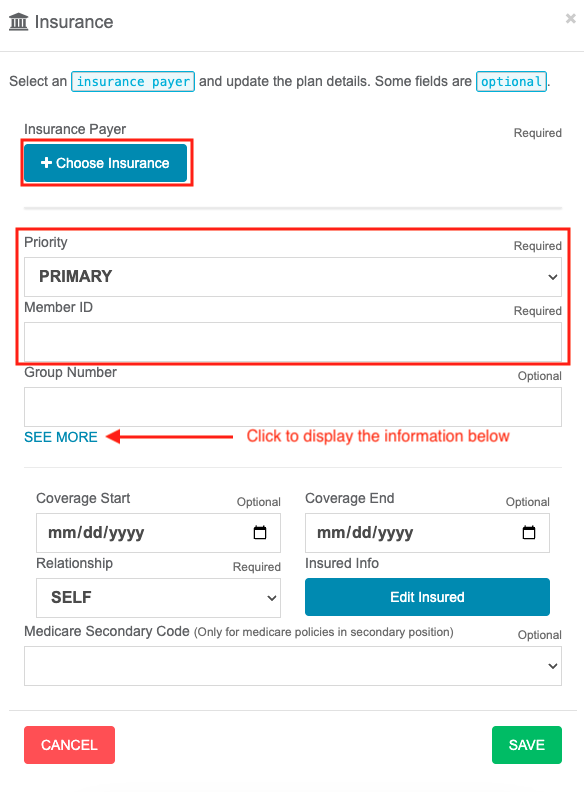
**Required fields:**
* **Choose Insurance** - Select the insurance payer
* **Priority** - Select Primary, Secondary, or Tertiary
* **Member ID** - Enter the patient's member ID
* Click **SAVE**
If the patient has no insurance coverage, select the **Self Pay** Insurance.
> **Optional fields** (click **See More**):
>
> * Coverage Start/End dates
> * Relationship between the Patient and the Insured
> * **Medicare Type Code** — Identifies the type of Medicare coverage (e.g. Medicare Part A, Part B). Used for Medicare claims routing.
> * **Medicare Secondary Code** — Indicates why Medicare is not the primary payer. Required when Medicare is listed as secondary and another payer is primary.
>
>  >
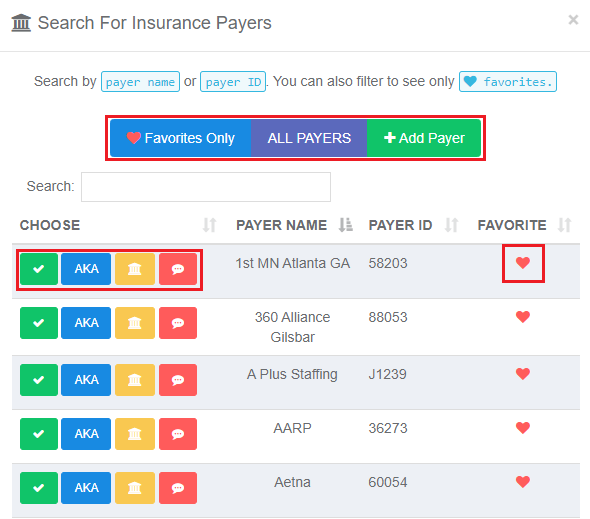
> 3. **Choose Insurance and Search for Payers** - When you click **Choose Insurance**, you'll see an insurance list. The default view shows your favorites.
>
> * Click **All Payers** to view all available payers
> * Click **Add Payer** to add a new payer by linking to an existing payer ID or using payer ID **PAPER** for paper claims
Adding or removing favorites is as easy as clicking the ♡.
>
Search by Payer Name, AKA, or Payer ID.
>
> 3. **Choose Insurance and Search for Payers** - When you click **Choose Insurance**, you'll see an insurance list. The default view shows your favorites.
>
> * Click **All Payers** to view all available payers
> * Click **Add Payer** to add a new payer by linking to an existing payer ID or using payer ID **PAPER** for paper claims
Adding or removing favorites is as easy as clicking the ♡.
>
Search by Payer Name, AKA, or Payer ID.
 ## Frequently Asked Questions
### Can I flag a patient's insurance as a Medicare Supplement or supplemental plan?
No. Elation Billing does not have a dedicated "Medicare Supplement" or "supplemental" insurance type. There is also no "Notes" field on insurance records in Elation Billing.
Insurance **Priority** in Elation Billing is limited to three options: **Primary**, **Secondary**, and **Tertiary**. There is no additional type or flag to mark a plan as supplemental.
If a patient has Medicare alongside a Medicare Supplement (Medigap) plan, the recommended approach is:
* Add Medicare as **Primary**
* Add the Medicare Supplement plan as **Secondary**, selecting the correct supplement payer from the payer list
For Medicare patients, use the optional **Medicare Type Code** and **Medicare Secondary Code** fields (available under **See More**) to ensure claims route correctly when Medicare is involved. These are the only Medicare-specific fields available in Elation Billing — there is no separate "Medicare Supplement" insurance type.
### How do I keep a supplemental plan on file without having it route claims right away?
If a patient has a supplement plan that should only be used under certain conditions — for example, a Medigap plan that only becomes relevant when Medicare is the primary payer — you can save it to the patient's record without making it active for claims by setting a **Coverage End Date** in the past under **See More**. This keeps the plan on file so your team can reference it, without it routing claims.
When the plan becomes active, edit the record and update or remove the end date.
For **EHR + Billing practices**, you can also use the inactive rank options in the EHR (Primary (Inactive), Secondary (Inactive), Tertiary (Inactive)) to store a plan without activating it for billing. Changes to insurance rank in the EHR sync to Elation Billing.
### How many active insurance policies can a patient have?
Up to three: Primary, Secondary, and Tertiary. If a patient has additional coverage beyond three plans, contact Elation Support for guidance.
## Related Articles
* [Add a New Patient](/articles/add-a-new-patient)
* [Filing a Claim](/articles/filing-a-claim)
* [Running Eligibility](/articles/running-eligibility)
## Frequently Asked Questions
### Can I flag a patient's insurance as a Medicare Supplement or supplemental plan?
No. Elation Billing does not have a dedicated "Medicare Supplement" or "supplemental" insurance type. There is also no "Notes" field on insurance records in Elation Billing.
Insurance **Priority** in Elation Billing is limited to three options: **Primary**, **Secondary**, and **Tertiary**. There is no additional type or flag to mark a plan as supplemental.
If a patient has Medicare alongside a Medicare Supplement (Medigap) plan, the recommended approach is:
* Add Medicare as **Primary**
* Add the Medicare Supplement plan as **Secondary**, selecting the correct supplement payer from the payer list
For Medicare patients, use the optional **Medicare Type Code** and **Medicare Secondary Code** fields (available under **See More**) to ensure claims route correctly when Medicare is involved. These are the only Medicare-specific fields available in Elation Billing — there is no separate "Medicare Supplement" insurance type.
### How do I keep a supplemental plan on file without having it route claims right away?
If a patient has a supplement plan that should only be used under certain conditions — for example, a Medigap plan that only becomes relevant when Medicare is the primary payer — you can save it to the patient's record without making it active for claims by setting a **Coverage End Date** in the past under **See More**. This keeps the plan on file so your team can reference it, without it routing claims.
When the plan becomes active, edit the record and update or remove the end date.
For **EHR + Billing practices**, you can also use the inactive rank options in the EHR (Primary (Inactive), Secondary (Inactive), Tertiary (Inactive)) to store a plan without activating it for billing. Changes to insurance rank in the EHR sync to Elation Billing.
### How many active insurance policies can a patient have?
Up to three: Primary, Secondary, and Tertiary. If a patient has additional coverage beyond three plans, contact Elation Support for guidance.
## Related Articles
* [Add a New Patient](/articles/add-a-new-patient)
* [Filing a Claim](/articles/filing-a-claim)
* [Running Eligibility](/articles/running-eligibility)