> ## Documentation Index
> Fetch the complete documentation index at: https://help.elationhealth.com/llms.txt
> Use this file to discover all available pages before exploring further.
# Patient Forms Guide - Creating and managing Patient Forms
> Learn how to set-up electronic intake forms.
## Overview
### Does Elation have pre-built Patient Forms and questions?
Yes, Elation has the following pre-built Patient Forms templates:
* New Patient Medical History
* Follow-up Medical History
* Demographics
* Insurance Information
* COVID-19 Screening
* Medicare AWV
Each template is associated with a set of pre-built questions. You can customize any of the templates to fit your needs and create your own personalized versions of these forms.
### How do I create my own Patient Forms?
Use the Patient Forms builder to create your own Patient Forms. You can build forms in several ways:
* Use pre-built templates, sections, and questions.
* Create your own questions and sections from scratch.
* Covert a PDF or image of a form into a structured form.
See below for step-by-step instructions.
### Anatomy of a Patient Form
Here are the core components of a Patient Form as it’s being built.
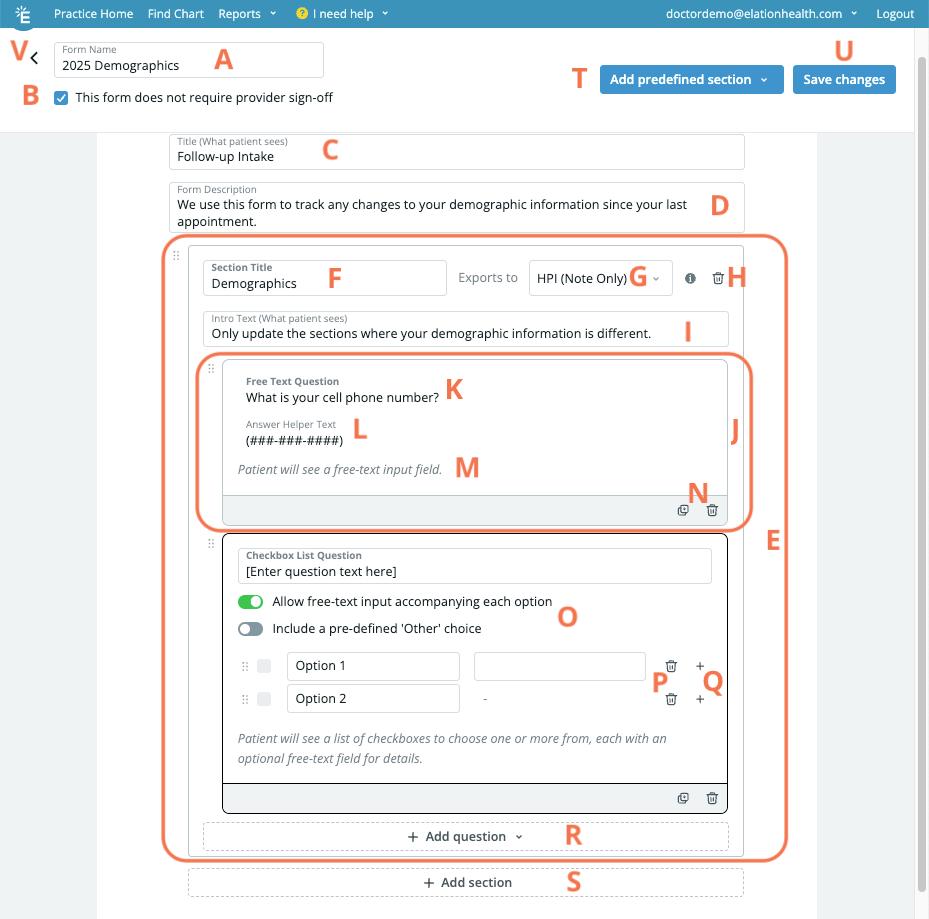 | **Letter** | **Name** | **Description** | **Visible to patients?** |
| - | - | - | - |
| A | Form Name | Internal name of the form. | No |
| B | Sign-off permission indicator | Enables Staff Level Users to sign off on patient responses. | No |
| C | Title (What patient sees) | External name of the form. | Yes |
| D | Form Description | Description of the form. | Yes |
| E | Section | Organizes related questions together. Each form can have multiple sections. To move the section to a new location in the form, click and hold the **Grid** icon, drag the section to its new location and then let go of your cursor. | Yes Each section is separated by a horizontal line. |
| F | Section Title | Internal title of the section. | No |
| G | Exports to preference | Defines where responses from this section can be exported to in the patient’s chart. | No |
| H | Section shortcut (delete) | Deletes the section. | No |
| I | Intro Text (What patient sees) | Provides context or explanation for the upcoming question(s). | Yes — while completing the form only. Not shown on the completed form in the chart or its printout. |
| J | Question | The item that asks for specific information or a response from the patient. Each section can have multiple questions. To move the question to a new location in the section, click and hold the **Grid** icon, drag the question to its new location and then let go of your cursor. | Yes |
| K | Question Text | The prompt that you want the patient to answer. | Yes |
| L | Answer Helper Text | Example(s) of what the patient can input as an answer. E.g. If you want the patient to enter their Date of Birth as a two digit month, two digit date and four digit year, enter the **Answer Help Text** as **MM/DD/YYYY**. | Yes |
| M | Question type description | Describes the answer format for the question. | No |
| N | Question shortcuts (copy & delete) | Options to duplicate the question to create a similar question or delete the question. | No |
| O | Question settings | Specify additional preferences for the question format. (Only available for the **Checkbox List Question** format.) | No |
| P | Delete icon | Deletes the answer option. | No |
| Q | Add answer option icon | Adds an answer option. | No |
| R | Add question | Adds a new question to that section. | No |
| S | Add section | Adds a new section. | No |
| T | Add predefined section | Add a predefined section to the form. | No |
| U | Save changes | Save form edits. | No |
| V | Back | Return to the Patient Forms list. | No |
**Intro Text does not appear on the completed form.** Use Intro Text for instructions and context that only need to be seen while the patient is filling out the form. Any language the patient is legally agreeing to — consent terms, financial policy, privacy notices — must go in a **question** (for signature sections, the agreement question), because question text is what appears on the completed form in the chart and on the printout.
A section's question text is what carries through to the completed form and printout, so anything that must be part of the legal record belongs in a question rather than Intro Text. For a worked example of this pattern, see [Patient Forms - Sample Forms and Use Cases](/articles/Patient-Forms-Sample-Forms-and-Use-Cases).
## Setup
### Specifying who can create or edit forms
By default, anyone in the practice can create or edit Patient Forms. If preferred, you can set it so that only [Admin Level Users](/articles/administrative-privileges) can configure patient forms by following these steps:
| **1** | Go to **Settings** -> **Patient Forms** . |
| - | - |
| **2** | Click the **Admin only** toggle until it turns green (ON). |
Changes to this setting will be applied immediately.
### Specifying who can sign off on completed forms
By default, only Provider Level Users can sign off on forms responses. For each Patient Form, Admin Level Users can enable a setting that allows Staff Level Users to sign off on its form responses. This feature is ideal for forms that generally do not require provider oversight such as forms for demographics or insurance collection.
To allow staff to sign off on a specific patient form, check the box labeled **Allow staff sign-off for this form** when editing that form. This checkbox appears directly under the **Form Name** field in the form editor.
**New forms have this setting turned off by default.** If you create a new form — including a new version of a form you already use — staff sign-off will be disabled until you check this box. If staff can sign off on some of your forms but not others, this setting is the first thing to check on the form that isn't working.
**This setting is per form.** If your practice has two forms with similar or identical names (for example, an original and an updated version), check the box on each form that should allow staff sign-off. Enabling it on one form has no effect on any other form.
**You must be an Admin user to see or change this setting.** If you're editing a form and don't see this checkbox, ask an Admin at your practice to make the change.
If a Staff Level user cannot see a **Sign Off** or **Mark as Reviewed** button on a completed form, see [I don't see a "Sign Off" button – why?](/articles/the-requiring-actions-queue-follow-up-on-action-items#i-dont-see-a-sign-off-button--why) for troubleshooting.
## Workflow Instructions
### Generating a Patient Form draft from a PDF or image
| **1** | Go to **Settings** -> **Patient Forms** . |
| - | - |
| **2** | Click **Create from PDF or Image** . |
| **3** | Select the PDF or image of your form from your device and click **Open**. Supported languages are English, German, French, Spanish, Italian and Portuguese. |
| **4** | A new browser tab will open to generate a draft of the form.**Do not close this tab** until the draft is complete, or the form will not be generated. |
| **5** | Once the draft is generated, review the internal **Form Name** in the upper lefthand corner. This name will only be seen by members of your practice. |
| **6** | **(Admin Level User Only)** Specify who can sign off on the completed form by checking or unchecking the **Allow staff sign-off for this form** box. [Click here for information about this setting](#specifying-who-can-sign-off-on-completed-forms). |
| **7** | Review the external **Title** and **Form Description**. These will be visible to your patients while they fill out the form. |
| **8** | Review each section and make adjustments as needed. Adjust the section title as needed. • Adjust where you want the section responses to export to, if allowed. • Add question(s) to the section, see step #9 below. Each section must have at least one question. |
| **9** | Review each question and make adjustments as needed. Add a custom question by clicking **+ Add question**. |
| **10** | Click **Save form** to save any changes. |
| **11** | Click the **back arrow** to return to the main Settings page. |
### Creating a Patient Form from scratch or from a template
| **1** | Go to **Settings** -> **Patient Forms** . |
| - | - |
| **2** | Choose how you want to build your form: To select a template from the dropdown to use a prebuilt form as a starting point., click **Create from Template**. • To start building from scratch, click **Create a Blank Form**. |
| **3** | Fill out the internal **Form Name** in the upper lefthand corner. This name will only be seen by members of your practice. |
| **4** | **(Admin Level User Only)** Specify who can sign off on the completed form by checking or unchecking the **Allow staff sign-off for this form** box. [Click here for information about this setting](#specifying-who-can-sign-off-on-completed-forms). |
| **5** | Give the form a **Title** and **Form Description**. Both are visible to the patient. |
| **6** | Customize the sections of your form. Templates come with certain predefined sections, predefined export to settings and pre-built questions. • A blank form will start you off with a blank section. • Click **+ Add section** to add a custom section. Customization options include Adjusting the **Section Title** & **Intro Text**. • Selecting where the responses export to in the patient's chart. • Adding questions (see step #7 below). Each section must have at least one question. • Changing the order in which the sections display in the form using the **Grid** icon. |
| **7** | Customize the questions of your form: Templates come with certain predefined sections, predefined export to settings and pre-built questions. • A blank form will start you off with a blank section where you must add at least one question. • Click **+ Add question** to add a custom question to any section. To reorganize questions, click and hold the **Grid** icon, drag the question to its new location in the same section and then let go of your cursor. Questions cannot be moved across sections. |
| **8** | Click **Save form** to save any changes. |
| **9** | Click the **back arrow** to return to the main Settings page. |
### Using pre-defined sections
Each pre-defined section includes a title, default export settings for responses, and one or more pre-set questions. Each predefined section can only be added once to a patient form except for **Other**.
| **1** | Click **Add predefined section** to add a predefined section. |
| - | - |
| **2** | Customize the **Section Title** & **Intro Text** . |
| **3** | When you use the **Other** section, choose where to export the section responses. |
| **4** | Review the pre-built questions that come with the predefined section. Add a custom question by clicking **+ Add question**. • Copy a pre-built question to use it as a starting point for a similar question using the **copy** icon. |
**"Other" is a section, not an export destination.** The **Exports to** dropdown only lists Clinical Profile sections (such as Habits, PMH, Family History, and Social History). There is no "Other" choice in that dropdown, and no dynamic macro adds one. What the **Other** predefined section does is let you *choose* which Clinical Profile section a response exports to—it is the only section whose export destination you can edit. Every other predefined section exports to a fixed destination.
If you are building a form that doesn't belong in the Clinical Profile at all—such as a consent form, terms of service, or financial policy—you don't need to set an export destination. Once the patient submits, the completed form files into their chart as its own report; the **Exports to** setting only matters when you want a response *copied* into a Clinical Profile section.
Other customization options include:
* To delete a predefined section, click the **trash can** icon.
* To move the predefined section to a new location in the form, click and hold the **Grid** icon, drag the section to its new location and then let go of your cursor.
### Using prebuilt questions
Prebuilt questions are designed to collect structured data that fits directly into areas of the chart like Demographics, Clinical Questionnaires, Medication Lists, and Health Maintenance. Each prebuilt question is formatted to suit the type of information being collected. For example, the **Medical History** question uses checkboxes so patients can easily select the conditions they have.
Some prebuilt questions cannot be edited because they are either formatted for the areas they must export to (e.g. **Demographics: Preferred Language**) or they are standard instruments with pre-configured scoring (e.g. **Depression (PHQ-2)**).
Responses to prebuilt questions will be exported to the located defined by the section it is in. You can’t edit the default export destination for prebuilt questions, except for those located in the **Other** predefined section.
### Creating your own questions
Create custom questions to collect information that’s specific to your practice, workflows, or patient population. Responses to custom questions will be exported to the located defined by the section it is in. [Click here to view sample use cases for Patient Forms](/articles/Patient-Forms-Sample-Forms-and-Use-Cases).
The question formats available are:
| **Question Format** | **Use Case** | **Example** |
| - | - | - |
| Short answer | A single-line text field where the patient can type a brief, free-text response. | “What is the name and address of your preferred pharmacy?” |
| Patient signature | Allows patients to provide their electronic signature. | “Please sign below to consent to treatment.” |
| Dropdown Select | A list of options that appears when the patient clicks the dropdown menu. The patient can choose only **one** answer from the list. | “Select your primary language.” |
| Radio Select | A set of visible options displayed as circles. The patient can choose only **one** answer. | “What is your current smoking status?” |
| Checkbox | A list of options with checkboxes. The patient can choose **one or more** answers. You can also specify the following: **Allow free-text input accompanying each option** • **Include a pre-defined \*\* Other** choice\*\* | “Which symptoms are you experiencing?” |
| Free-text list | Allows patients to enter several responses, saved as individual items. | “List any supplements you’re currently taking.” |
| **1** | Add a new question by clicking **+ Add question** . |
| - | - |
| **2** | Select the question format you want to use. |
| **3** | Customize the question and answer options. Add **Answer Help Text** as guidance for the patient if needed. (e.g. if you want the patient to enter their Date of Birth as a two digit month, two digit date and four digit year, enter the **Answer Help Text** as **MM/DD/YYYY**) • Click **+** to add additional answer options. • Click the **trash can** icon to delete unneeded answer options. |
| **4** | To reorder the questions, click and hold the **Grid** icon, drag the question to its new location and then let go of your cursor. |
| **5** | To copy a question to use it as a starting point for a similar question, click the **copy** icon. |
### Using a Patient Form Template
Templates come with predefined sections and questions to help you quickly create commonly used forms. To use a template simply click on the template name when creating a new form.
For example
* The **Demographics Template** allows you to collect information for certain demographics fields, such as the patient's preferred pronouns or emergency contact information, to maintain the most up to date demographics for each patient.
* Only the sections and questions available in the **Demographics Template** can be exported to a patient's demographics. You cannot create your own questions for exporting to patient demographics fields.
* The **Medicare AWV Template** allows you to send patients a list of typical questions for a Medicare Annual Wellness Visit. This way, you can collect responses before the appointment and reference them in the note, streamlining the visit.
### Managing the Patient Forms List
Newly created forms will appear at the bottom of the **Manage Forms** list on the Patient Forms Settings page. To reorder your forms, click the **Grid** icon and drag and drop the form to a new location.
Each form displays the following details:
* Form title
* Creator and creation date
* Last modified by and last modified date
* Linked Appointment Types, if the form is attached to any
This makes it easy to track form updates and understand how each form is being used in your workflow.
### Editing Patient Forms
When you edit a form, any changes you make will automatically apply moving forward. Patients will see the updated version the next time they load the form.
| **1** | Go to **Settings** -> **Patient Forms** . |
| - | - |
| **2** | Click **Edit** next to the form you want to edit. |
| **3** | Make your edits and then click **Save form** to save any changes. |
| **4** | Click the **back arrow** to return to the main Settings page. |
### Deleting Patient Forms
Deleted with caution as deleted forms cannot be restored. Deleting a form will immediately remove it from any linked appointment types. If the form was already sent to a patient, they may no longer be able to complete it—so make sure it’s no longer needed before deleting.
| **1** | Go to **Settings** -> **Patient Forms** . |
| - | - |
| **2** | Click **Delete** next to the form you want to delete. |
| **3** | Click **Delete** again to confirm. |
## Frequently Asked Questions
### Setting Up Forms
#### Can I upload a PDF as my Elation medical history form?
Yes, you can upload the PDF file to the Patient Form builder and have it create a draft form for you to edit and customize. [Click here for more instructions](/articles/Patient-Forms-Guide#generating-a-patient-form-draft-from-a-pdf-or-image).
#### Can patients electronically sign forms?
Yes, patients can electronically sign forms if you use the **Patient Signature** question in your form.
#### Are there any sample forms in the system for us to use?
Our team has added a few form templates that you can further customize. These are found under the **Create new form** button on the Patient Forms settings page.
#### Can we create forms in other languages?
You can modify the question prompt and helper text of our canned and **Other** question to be in another language.
#### Can we create forms with conditional questions (i.e. questions that only appear based on gender or age)?
Questions are not conditional in nature right now. We'd recommend adding phrases like 'if applicable' in the question prompt to indicate that it is not required for all patients.
#### Are any questions on the form mandatory?
Only the **Patient Signature** question has requirements. Other questions cannot be set as mandatory/required. If you'd like your patients to fill in all questions, please include those instructions in the Form Description.
#### Can I add more than one patient signature question to a single Patient Form?
Yes, you can add multiple **Patient Signature** questions to a form. Exception: forms created using **Create from a PDF** support only one **Patient Signature** question. To collect separate sign-off for multiple sections on a form created this way, add one **Patient Signature** question at the end of the form and use a checkbox or radio button question (e.g. "I have read and agree to Section 1 above") for each section that needs individual acknowledgment.
#### Can I duplicate an existing form to create a variant for a different age group or specialty?
Not with a single click. Create a new form for each variant, either starting from one of the built-in templates under **Settings > Patient Forms** or rebuilding the questions manually in the form builder.
#### What is the character limit for the Question Text field?
The character limit for the **Question Text** field is 5,000 characters with the exception of the **Patient Signature** question which has a character limit of 50,000 characters.
#### Can I print a blank version of a Patient Form?
Patient Forms are designed for online completion, so there is not a one-click option to print a fully blank copy from **Settings > Patient Forms**. To create a printable version for office use, recreate the form in Word or Google Docs and upload it as a [Patient Handout](/articles/patient-handouts). To print a copy of a specific patient's form, open the form from their appointment, click **Actions > Copy URL**, paste the link into your browser, and use your browser's print function.
### Filling Out Patient Forms
#### Are the forms mobile friendly?
Yes, medical history forms are mobile friendly and will work on any device with an internet connection.
#### Can I use Elation as a kiosk?
Elation does not currently provide a dedicated kiosk user interface. However, you can use **Patient Forms** on a clinic-owned tablet in your waiting area to collect demographics, questionnaires, and consents from patients upon arrival. Combine this with staff-driven check-in in the **Calendar** and **Patient Payments** for copay collection to create a streamlined intake workflow. For a more robust intake experience with patient self-identification, consider a third-party intake partner such as Updox or IntakeQ. See the [Patient Intake & Check-In Options](/articles/Patient-Intake-Check-In-Options) article for recommended patterns and partner integrations.
#### Besides free-text, can patients answer questions in more structured ways?
Most questions are built as free-text answers. Certain questions will support different types of responses. For example the **Smoking Status** and **Depression (PHQ-9)** questions have a drop down selection, and **Medical History** and **Family History** have checkboxes.
#### Can patients search a database to enter their preferred pharmacy?
Currently, patients can only enter a preferred pharmacy with free text.
#### Can patients save partially completed forms or edit responses that they've already submitted?
Once the form is submitted, the patient cannot go back and edit their responses to that form. If they have not submitted the form yet, they can use the same link that will bring them to a blank version of the form. Partially completed forms will not be saved.
#### A patient sees a "Page Not Found," "Form not found," or "page expired" message when opening their form link. What should I do?
Patient form links are single-use and time-limited, so this means the link has expired or already been used. Resend the patient form request to generate a new link. If the patient's appointment is soon, staff can also open the form on their behalf at check-in.
#### Are patient signatures saved so the patient can re-use them on other forms?
No, a patient will need to individually sign each form where a signature is requested.
#### Can patients add/upload any attachments when they are submitting their forms?
Patients cannot currently add or upload any attachments when submitting a form. We recommend using Patient Passport if a patient needs to send an attachment to the practice.
#### For a screening like PHQ-9, can I view a patient's individual question answers from an older submission, not just the total score?
Not currently. Individual question answers are only viewable for the most recently completed form of that type — older submissions of the same screening only show the total score.
#### Can a staff member or nurse fill out the form on behalf of the patient?
A Provider or Staff member can fill out the form on behalf of the patient by accessing the form from the individual's appointment in the Calendar. Click **Copy URL** and paste it into a new browser tab to open the form.
## Related Articles
* [Patient Forms Introduction](/articles/Getting-Started-with-Patient-Forms)
* [Patient Forms Guide - Sending forms to patients](/articles/Sending-forms-to-patients)
* [Patient Forms Guide - Managing forms responses](/articles/Managing-forms-responses)
* [Patient Forms Guide - Receiving and filling out forms as a patient](/articles/Receiving-and-filling-out-forms-as-a-patient)
* [Patient Forms Guide - Sample Forms and Use Cases](/articles/Patient-Forms-Sample-Forms-and-Use-Cases)
* [How to set up your Patient Booking Site](/articles/Patient-Booking-Site)
* [How to set up Elation Integrated Video](/articles/Elation-Telehealth-powered-by-Zoom)
| **Letter** | **Name** | **Description** | **Visible to patients?** |
| - | - | - | - |
| A | Form Name | Internal name of the form. | No |
| B | Sign-off permission indicator | Enables Staff Level Users to sign off on patient responses. | No |
| C | Title (What patient sees) | External name of the form. | Yes |
| D | Form Description | Description of the form. | Yes |
| E | Section | Organizes related questions together. Each form can have multiple sections. To move the section to a new location in the form, click and hold the **Grid** icon, drag the section to its new location and then let go of your cursor. | Yes Each section is separated by a horizontal line. |
| F | Section Title | Internal title of the section. | No |
| G | Exports to preference | Defines where responses from this section can be exported to in the patient’s chart. | No |
| H | Section shortcut (delete) | Deletes the section. | No |
| I | Intro Text (What patient sees) | Provides context or explanation for the upcoming question(s). | Yes — while completing the form only. Not shown on the completed form in the chart or its printout. |
| J | Question | The item that asks for specific information or a response from the patient. Each section can have multiple questions. To move the question to a new location in the section, click and hold the **Grid** icon, drag the question to its new location and then let go of your cursor. | Yes |
| K | Question Text | The prompt that you want the patient to answer. | Yes |
| L | Answer Helper Text | Example(s) of what the patient can input as an answer. E.g. If you want the patient to enter their Date of Birth as a two digit month, two digit date and four digit year, enter the **Answer Help Text** as **MM/DD/YYYY**. | Yes |
| M | Question type description | Describes the answer format for the question. | No |
| N | Question shortcuts (copy & delete) | Options to duplicate the question to create a similar question or delete the question. | No |
| O | Question settings | Specify additional preferences for the question format. (Only available for the **Checkbox List Question** format.) | No |
| P | Delete icon | Deletes the answer option. | No |
| Q | Add answer option icon | Adds an answer option. | No |
| R | Add question | Adds a new question to that section. | No |
| S | Add section | Adds a new section. | No |
| T | Add predefined section | Add a predefined section to the form. | No |
| U | Save changes | Save form edits. | No |
| V | Back | Return to the Patient Forms list. | No |
**Intro Text does not appear on the completed form.** Use Intro Text for instructions and context that only need to be seen while the patient is filling out the form. Any language the patient is legally agreeing to — consent terms, financial policy, privacy notices — must go in a **question** (for signature sections, the agreement question), because question text is what appears on the completed form in the chart and on the printout.
A section's question text is what carries through to the completed form and printout, so anything that must be part of the legal record belongs in a question rather than Intro Text. For a worked example of this pattern, see [Patient Forms - Sample Forms and Use Cases](/articles/Patient-Forms-Sample-Forms-and-Use-Cases).
## Setup
### Specifying who can create or edit forms
By default, anyone in the practice can create or edit Patient Forms. If preferred, you can set it so that only [Admin Level Users](/articles/administrative-privileges) can configure patient forms by following these steps:
| **1** | Go to **Settings** -> **Patient Forms** . |
| - | - |
| **2** | Click the **Admin only** toggle until it turns green (ON). |
Changes to this setting will be applied immediately.
### Specifying who can sign off on completed forms
By default, only Provider Level Users can sign off on forms responses. For each Patient Form, Admin Level Users can enable a setting that allows Staff Level Users to sign off on its form responses. This feature is ideal for forms that generally do not require provider oversight such as forms for demographics or insurance collection.
To allow staff to sign off on a specific patient form, check the box labeled **Allow staff sign-off for this form** when editing that form. This checkbox appears directly under the **Form Name** field in the form editor.
**New forms have this setting turned off by default.** If you create a new form — including a new version of a form you already use — staff sign-off will be disabled until you check this box. If staff can sign off on some of your forms but not others, this setting is the first thing to check on the form that isn't working.
**This setting is per form.** If your practice has two forms with similar or identical names (for example, an original and an updated version), check the box on each form that should allow staff sign-off. Enabling it on one form has no effect on any other form.
**You must be an Admin user to see or change this setting.** If you're editing a form and don't see this checkbox, ask an Admin at your practice to make the change.
If a Staff Level user cannot see a **Sign Off** or **Mark as Reviewed** button on a completed form, see [I don't see a "Sign Off" button – why?](/articles/the-requiring-actions-queue-follow-up-on-action-items#i-dont-see-a-sign-off-button--why) for troubleshooting.
## Workflow Instructions
### Generating a Patient Form draft from a PDF or image
| **1** | Go to **Settings** -> **Patient Forms** . |
| - | - |
| **2** | Click **Create from PDF or Image** . |
| **3** | Select the PDF or image of your form from your device and click **Open**. Supported languages are English, German, French, Spanish, Italian and Portuguese. |
| **4** | A new browser tab will open to generate a draft of the form.**Do not close this tab** until the draft is complete, or the form will not be generated. |
| **5** | Once the draft is generated, review the internal **Form Name** in the upper lefthand corner. This name will only be seen by members of your practice. |
| **6** | **(Admin Level User Only)** Specify who can sign off on the completed form by checking or unchecking the **Allow staff sign-off for this form** box. [Click here for information about this setting](#specifying-who-can-sign-off-on-completed-forms). |
| **7** | Review the external **Title** and **Form Description**. These will be visible to your patients while they fill out the form. |
| **8** | Review each section and make adjustments as needed. Adjust the section title as needed. • Adjust where you want the section responses to export to, if allowed. • Add question(s) to the section, see step #9 below. Each section must have at least one question. |
| **9** | Review each question and make adjustments as needed. Add a custom question by clicking **+ Add question**. |
| **10** | Click **Save form** to save any changes. |
| **11** | Click the **back arrow** to return to the main Settings page. |
### Creating a Patient Form from scratch or from a template
| **1** | Go to **Settings** -> **Patient Forms** . |
| - | - |
| **2** | Choose how you want to build your form: To select a template from the dropdown to use a prebuilt form as a starting point., click **Create from Template**. • To start building from scratch, click **Create a Blank Form**. |
| **3** | Fill out the internal **Form Name** in the upper lefthand corner. This name will only be seen by members of your practice. |
| **4** | **(Admin Level User Only)** Specify who can sign off on the completed form by checking or unchecking the **Allow staff sign-off for this form** box. [Click here for information about this setting](#specifying-who-can-sign-off-on-completed-forms). |
| **5** | Give the form a **Title** and **Form Description**. Both are visible to the patient. |
| **6** | Customize the sections of your form. Templates come with certain predefined sections, predefined export to settings and pre-built questions. • A blank form will start you off with a blank section. • Click **+ Add section** to add a custom section. Customization options include Adjusting the **Section Title** & **Intro Text**. • Selecting where the responses export to in the patient's chart. • Adding questions (see step #7 below). Each section must have at least one question. • Changing the order in which the sections display in the form using the **Grid** icon. |
| **7** | Customize the questions of your form: Templates come with certain predefined sections, predefined export to settings and pre-built questions. • A blank form will start you off with a blank section where you must add at least one question. • Click **+ Add question** to add a custom question to any section. To reorganize questions, click and hold the **Grid** icon, drag the question to its new location in the same section and then let go of your cursor. Questions cannot be moved across sections. |
| **8** | Click **Save form** to save any changes. |
| **9** | Click the **back arrow** to return to the main Settings page. |
### Using pre-defined sections
Each pre-defined section includes a title, default export settings for responses, and one or more pre-set questions. Each predefined section can only be added once to a patient form except for **Other**.
| **1** | Click **Add predefined section** to add a predefined section. |
| - | - |
| **2** | Customize the **Section Title** & **Intro Text** . |
| **3** | When you use the **Other** section, choose where to export the section responses. |
| **4** | Review the pre-built questions that come with the predefined section. Add a custom question by clicking **+ Add question**. • Copy a pre-built question to use it as a starting point for a similar question using the **copy** icon. |
**"Other" is a section, not an export destination.** The **Exports to** dropdown only lists Clinical Profile sections (such as Habits, PMH, Family History, and Social History). There is no "Other" choice in that dropdown, and no dynamic macro adds one. What the **Other** predefined section does is let you *choose* which Clinical Profile section a response exports to—it is the only section whose export destination you can edit. Every other predefined section exports to a fixed destination.
If you are building a form that doesn't belong in the Clinical Profile at all—such as a consent form, terms of service, or financial policy—you don't need to set an export destination. Once the patient submits, the completed form files into their chart as its own report; the **Exports to** setting only matters when you want a response *copied* into a Clinical Profile section.
Other customization options include:
* To delete a predefined section, click the **trash can** icon.
* To move the predefined section to a new location in the form, click and hold the **Grid** icon, drag the section to its new location and then let go of your cursor.
### Using prebuilt questions
Prebuilt questions are designed to collect structured data that fits directly into areas of the chart like Demographics, Clinical Questionnaires, Medication Lists, and Health Maintenance. Each prebuilt question is formatted to suit the type of information being collected. For example, the **Medical History** question uses checkboxes so patients can easily select the conditions they have.
Some prebuilt questions cannot be edited because they are either formatted for the areas they must export to (e.g. **Demographics: Preferred Language**) or they are standard instruments with pre-configured scoring (e.g. **Depression (PHQ-2)**).
Responses to prebuilt questions will be exported to the located defined by the section it is in. You can’t edit the default export destination for prebuilt questions, except for those located in the **Other** predefined section.
### Creating your own questions
Create custom questions to collect information that’s specific to your practice, workflows, or patient population. Responses to custom questions will be exported to the located defined by the section it is in. [Click here to view sample use cases for Patient Forms](/articles/Patient-Forms-Sample-Forms-and-Use-Cases).
The question formats available are:
| **Question Format** | **Use Case** | **Example** |
| - | - | - |
| Short answer | A single-line text field where the patient can type a brief, free-text response. | “What is the name and address of your preferred pharmacy?” |
| Patient signature | Allows patients to provide their electronic signature. | “Please sign below to consent to treatment.” |
| Dropdown Select | A list of options that appears when the patient clicks the dropdown menu. The patient can choose only **one** answer from the list. | “Select your primary language.” |
| Radio Select | A set of visible options displayed as circles. The patient can choose only **one** answer. | “What is your current smoking status?” |
| Checkbox | A list of options with checkboxes. The patient can choose **one or more** answers. You can also specify the following: **Allow free-text input accompanying each option** • **Include a pre-defined \*\* Other** choice\*\* | “Which symptoms are you experiencing?” |
| Free-text list | Allows patients to enter several responses, saved as individual items. | “List any supplements you’re currently taking.” |
| **1** | Add a new question by clicking **+ Add question** . |
| - | - |
| **2** | Select the question format you want to use. |
| **3** | Customize the question and answer options. Add **Answer Help Text** as guidance for the patient if needed. (e.g. if you want the patient to enter their Date of Birth as a two digit month, two digit date and four digit year, enter the **Answer Help Text** as **MM/DD/YYYY**) • Click **+** to add additional answer options. • Click the **trash can** icon to delete unneeded answer options. |
| **4** | To reorder the questions, click and hold the **Grid** icon, drag the question to its new location and then let go of your cursor. |
| **5** | To copy a question to use it as a starting point for a similar question, click the **copy** icon. |
### Using a Patient Form Template
Templates come with predefined sections and questions to help you quickly create commonly used forms. To use a template simply click on the template name when creating a new form.
For example
* The **Demographics Template** allows you to collect information for certain demographics fields, such as the patient's preferred pronouns or emergency contact information, to maintain the most up to date demographics for each patient.
* Only the sections and questions available in the **Demographics Template** can be exported to a patient's demographics. You cannot create your own questions for exporting to patient demographics fields.
* The **Medicare AWV Template** allows you to send patients a list of typical questions for a Medicare Annual Wellness Visit. This way, you can collect responses before the appointment and reference them in the note, streamlining the visit.
### Managing the Patient Forms List
Newly created forms will appear at the bottom of the **Manage Forms** list on the Patient Forms Settings page. To reorder your forms, click the **Grid** icon and drag and drop the form to a new location.
Each form displays the following details:
* Form title
* Creator and creation date
* Last modified by and last modified date
* Linked Appointment Types, if the form is attached to any
This makes it easy to track form updates and understand how each form is being used in your workflow.
### Editing Patient Forms
When you edit a form, any changes you make will automatically apply moving forward. Patients will see the updated version the next time they load the form.
| **1** | Go to **Settings** -> **Patient Forms** . |
| - | - |
| **2** | Click **Edit** next to the form you want to edit. |
| **3** | Make your edits and then click **Save form** to save any changes. |
| **4** | Click the **back arrow** to return to the main Settings page. |
### Deleting Patient Forms
Deleted with caution as deleted forms cannot be restored. Deleting a form will immediately remove it from any linked appointment types. If the form was already sent to a patient, they may no longer be able to complete it—so make sure it’s no longer needed before deleting.
| **1** | Go to **Settings** -> **Patient Forms** . |
| - | - |
| **2** | Click **Delete** next to the form you want to delete. |
| **3** | Click **Delete** again to confirm. |
## Frequently Asked Questions
### Setting Up Forms
#### Can I upload a PDF as my Elation medical history form?
Yes, you can upload the PDF file to the Patient Form builder and have it create a draft form for you to edit and customize. [Click here for more instructions](/articles/Patient-Forms-Guide#generating-a-patient-form-draft-from-a-pdf-or-image).
#### Can patients electronically sign forms?
Yes, patients can electronically sign forms if you use the **Patient Signature** question in your form.
#### Are there any sample forms in the system for us to use?
Our team has added a few form templates that you can further customize. These are found under the **Create new form** button on the Patient Forms settings page.
#### Can we create forms in other languages?
You can modify the question prompt and helper text of our canned and **Other** question to be in another language.
#### Can we create forms with conditional questions (i.e. questions that only appear based on gender or age)?
Questions are not conditional in nature right now. We'd recommend adding phrases like 'if applicable' in the question prompt to indicate that it is not required for all patients.
#### Are any questions on the form mandatory?
Only the **Patient Signature** question has requirements. Other questions cannot be set as mandatory/required. If you'd like your patients to fill in all questions, please include those instructions in the Form Description.
#### Can I add more than one patient signature question to a single Patient Form?
Yes, you can add multiple **Patient Signature** questions to a form. Exception: forms created using **Create from a PDF** support only one **Patient Signature** question. To collect separate sign-off for multiple sections on a form created this way, add one **Patient Signature** question at the end of the form and use a checkbox or radio button question (e.g. "I have read and agree to Section 1 above") for each section that needs individual acknowledgment.
#### Can I duplicate an existing form to create a variant for a different age group or specialty?
Not with a single click. Create a new form for each variant, either starting from one of the built-in templates under **Settings > Patient Forms** or rebuilding the questions manually in the form builder.
#### What is the character limit for the Question Text field?
The character limit for the **Question Text** field is 5,000 characters with the exception of the **Patient Signature** question which has a character limit of 50,000 characters.
#### Can I print a blank version of a Patient Form?
Patient Forms are designed for online completion, so there is not a one-click option to print a fully blank copy from **Settings > Patient Forms**. To create a printable version for office use, recreate the form in Word or Google Docs and upload it as a [Patient Handout](/articles/patient-handouts). To print a copy of a specific patient's form, open the form from their appointment, click **Actions > Copy URL**, paste the link into your browser, and use your browser's print function.
### Filling Out Patient Forms
#### Are the forms mobile friendly?
Yes, medical history forms are mobile friendly and will work on any device with an internet connection.
#### Can I use Elation as a kiosk?
Elation does not currently provide a dedicated kiosk user interface. However, you can use **Patient Forms** on a clinic-owned tablet in your waiting area to collect demographics, questionnaires, and consents from patients upon arrival. Combine this with staff-driven check-in in the **Calendar** and **Patient Payments** for copay collection to create a streamlined intake workflow. For a more robust intake experience with patient self-identification, consider a third-party intake partner such as Updox or IntakeQ. See the [Patient Intake & Check-In Options](/articles/Patient-Intake-Check-In-Options) article for recommended patterns and partner integrations.
#### Besides free-text, can patients answer questions in more structured ways?
Most questions are built as free-text answers. Certain questions will support different types of responses. For example the **Smoking Status** and **Depression (PHQ-9)** questions have a drop down selection, and **Medical History** and **Family History** have checkboxes.
#### Can patients search a database to enter their preferred pharmacy?
Currently, patients can only enter a preferred pharmacy with free text.
#### Can patients save partially completed forms or edit responses that they've already submitted?
Once the form is submitted, the patient cannot go back and edit their responses to that form. If they have not submitted the form yet, they can use the same link that will bring them to a blank version of the form. Partially completed forms will not be saved.
#### A patient sees a "Page Not Found," "Form not found," or "page expired" message when opening their form link. What should I do?
Patient form links are single-use and time-limited, so this means the link has expired or already been used. Resend the patient form request to generate a new link. If the patient's appointment is soon, staff can also open the form on their behalf at check-in.
#### Are patient signatures saved so the patient can re-use them on other forms?
No, a patient will need to individually sign each form where a signature is requested.
#### Can patients add/upload any attachments when they are submitting their forms?
Patients cannot currently add or upload any attachments when submitting a form. We recommend using Patient Passport if a patient needs to send an attachment to the practice.
#### For a screening like PHQ-9, can I view a patient's individual question answers from an older submission, not just the total score?
Not currently. Individual question answers are only viewable for the most recently completed form of that type — older submissions of the same screening only show the total score.
#### Can a staff member or nurse fill out the form on behalf of the patient?
A Provider or Staff member can fill out the form on behalf of the patient by accessing the form from the individual's appointment in the Calendar. Click **Copy URL** and paste it into a new browser tab to open the form.
## Related Articles
* [Patient Forms Introduction](/articles/Getting-Started-with-Patient-Forms)
* [Patient Forms Guide - Sending forms to patients](/articles/Sending-forms-to-patients)
* [Patient Forms Guide - Managing forms responses](/articles/Managing-forms-responses)
* [Patient Forms Guide - Receiving and filling out forms as a patient](/articles/Receiving-and-filling-out-forms-as-a-patient)
* [Patient Forms Guide - Sample Forms and Use Cases](/articles/Patient-Forms-Sample-Forms-and-Use-Cases)
* [How to set up your Patient Booking Site](/articles/Patient-Booking-Site)
* [How to set up Elation Integrated Video](/articles/Elation-Telehealth-powered-by-Zoom)