> ## Documentation Index
> Fetch the complete documentation index at: https://help.elationhealth.com/llms.txt
> Use this file to discover all available pages before exploring further.
# Patient Demographics Guide
> The patient demographics fields in Elation allow for robust and accurate documentation of your patient's demographic information in the Patient Chart.
The Patient Demographics window in the Patient Chart is one of the most important tools you have at hand to foster a personal relationship with your patient and improve medical billing workflows.
You can hover your move over the video bar to jump ahead to chapters within the video.
## What are Patient Demographics?
The Patient Demographics feature allows you to store all patient identifying information in one place.
With the additional fields and selection options added in 2022 you can now store even more information in specified fields for all of your patients. The upgraded Clinical Profile view will also allow you to see the most critical pieces of information at a glance; without needing to open the full demographics window.
## Why are Patient Demographics valuable?
The Patient Demographics feature allows you to improve healthcare related workflows, enhance communication and streamline your business needs. You can store all of your patients' demographics information in one place to allow you to make crucial healthcare and treatment decisions based off of each patient's information.
Within Elation, various demographics fields also assist you with different workflows and facilitate the use of different features. Please review the [Tips for using various demographics fields](#Tips) section for more details.
## What fields are available in the Patient Demographics window?
All available demographics fields are visible below.
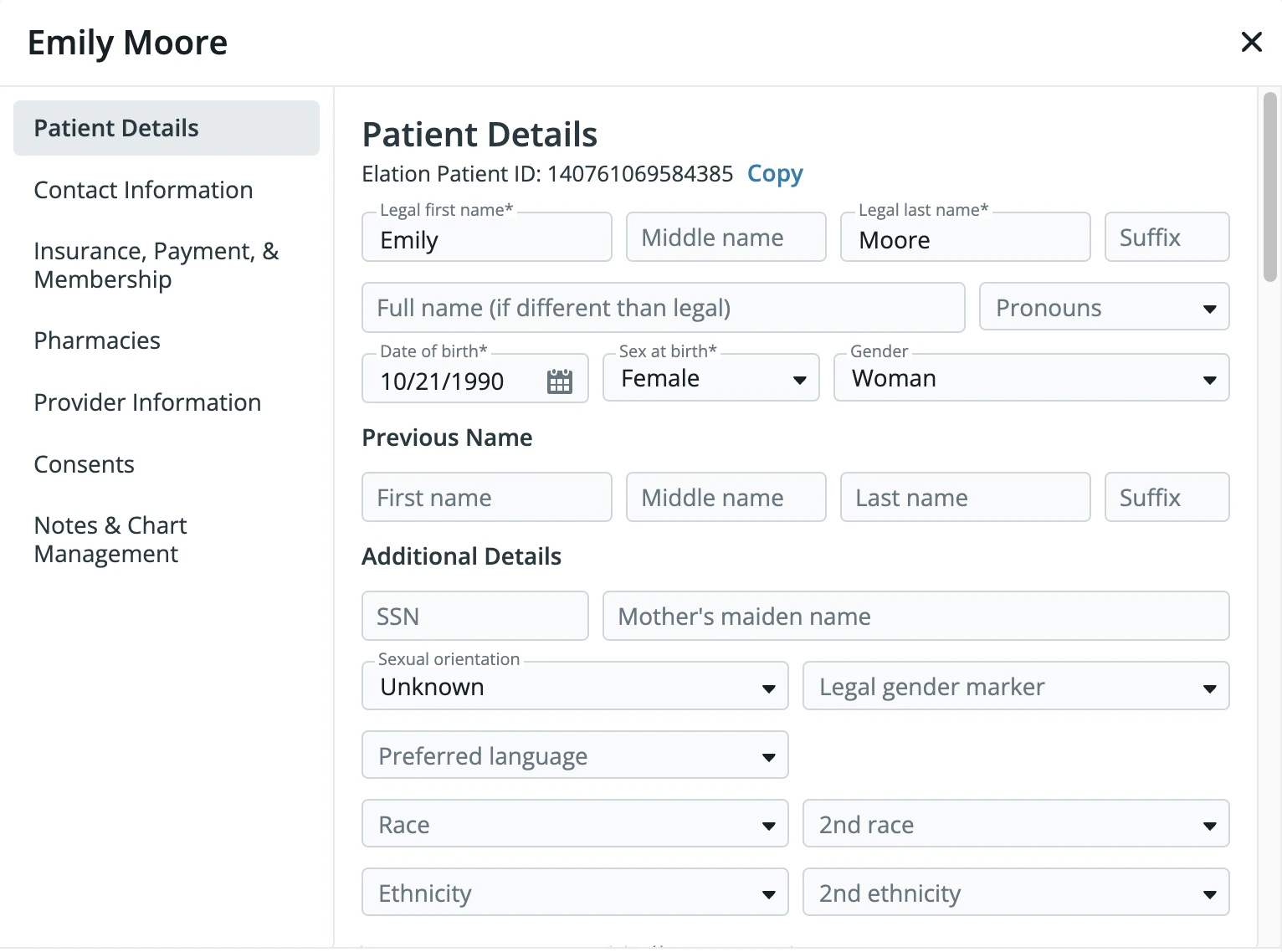
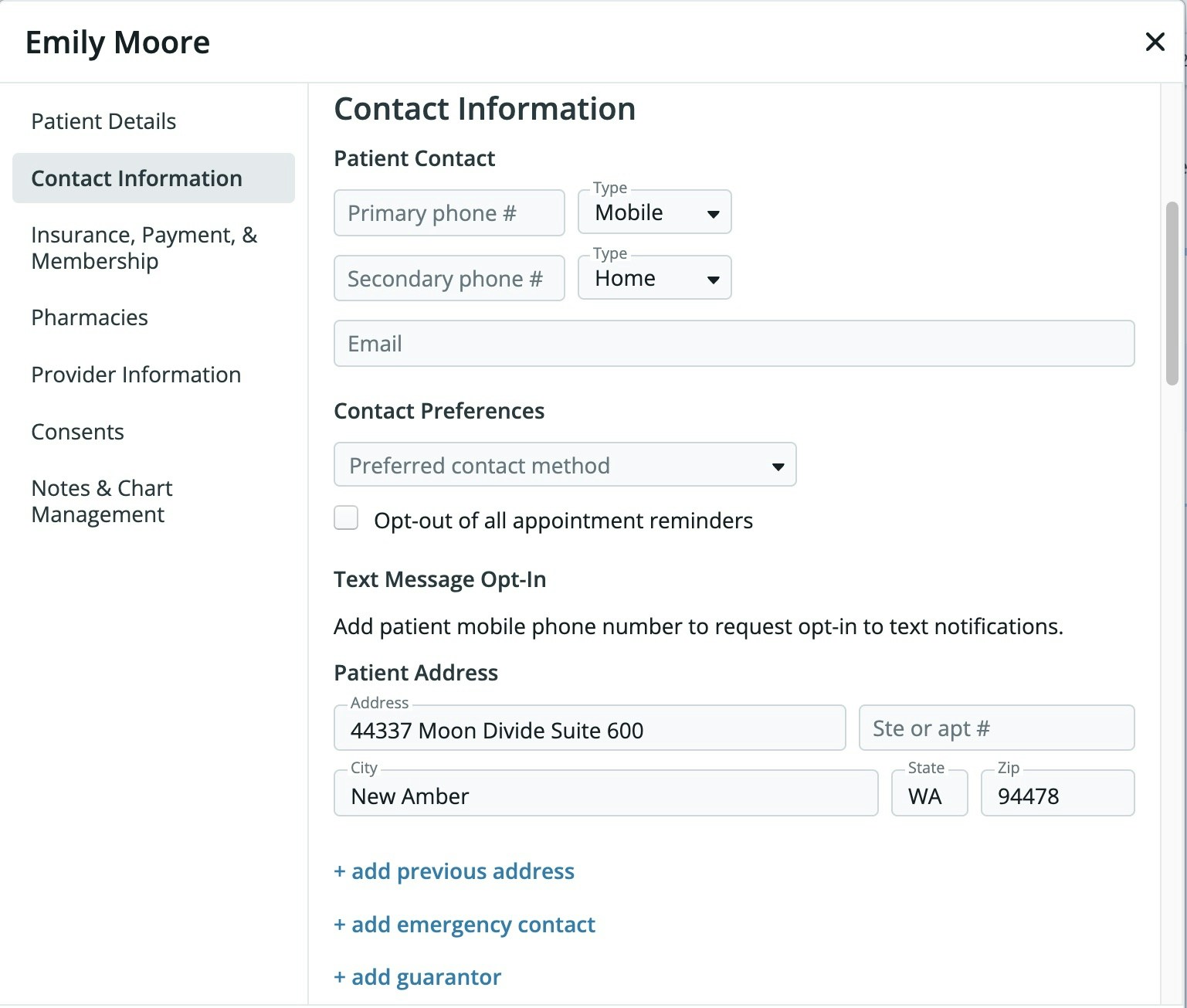
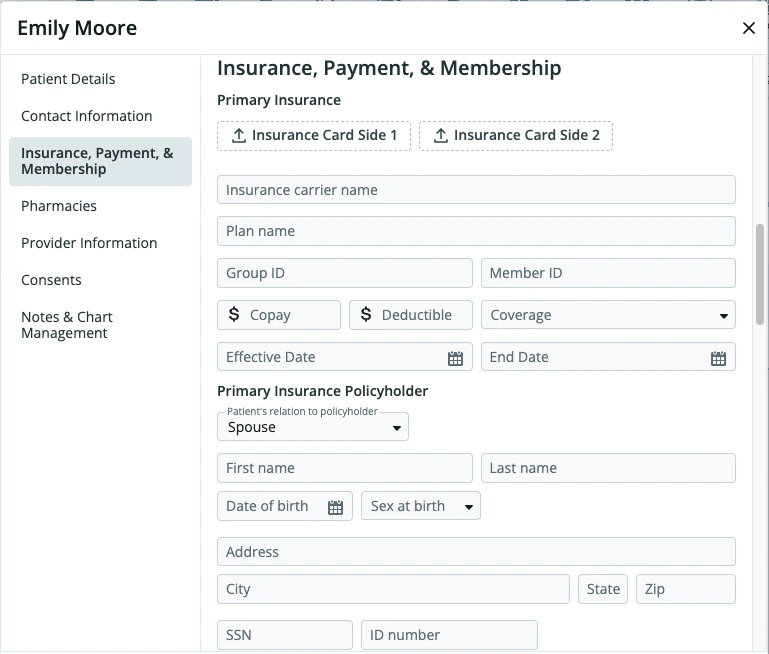
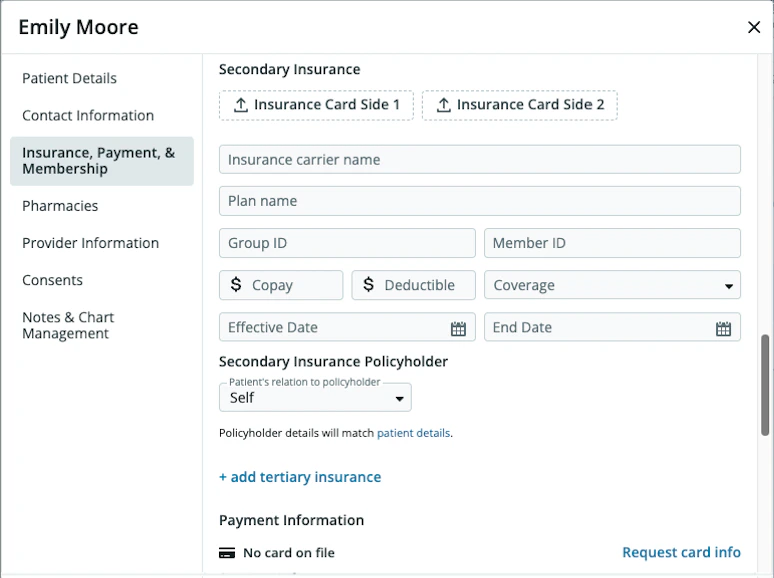
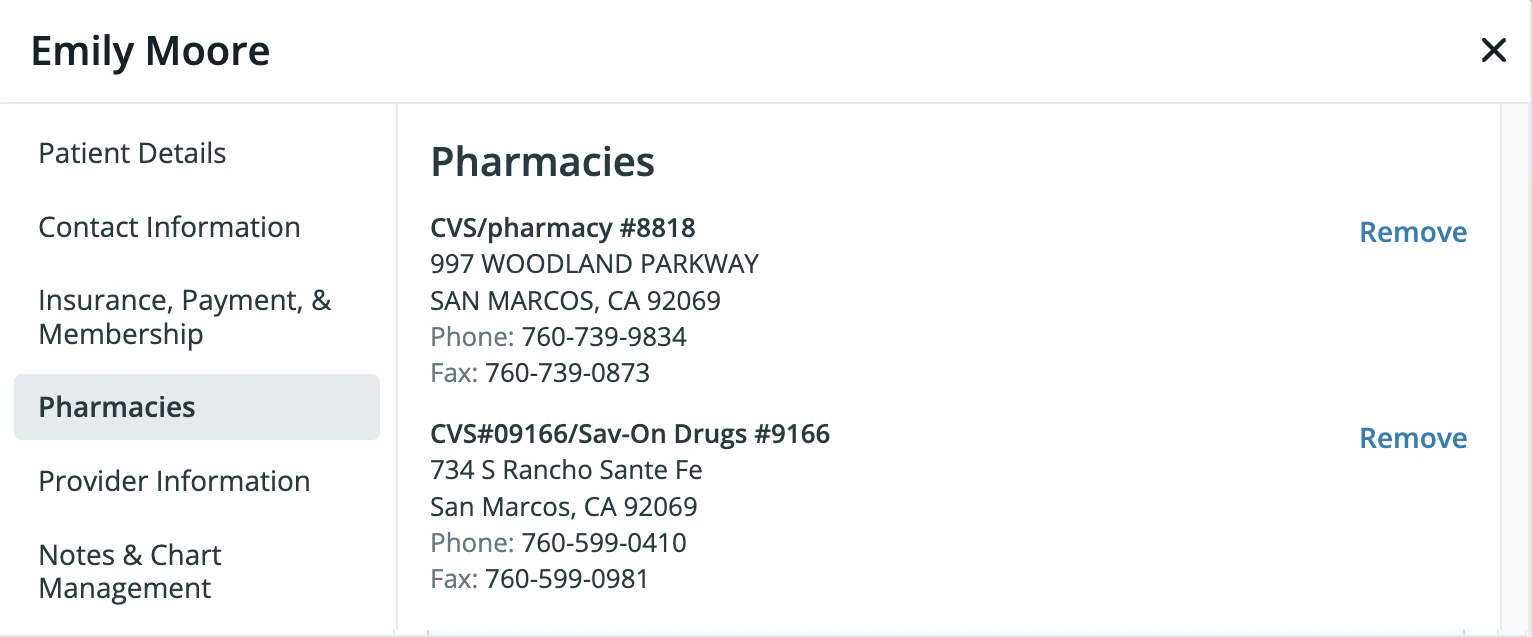
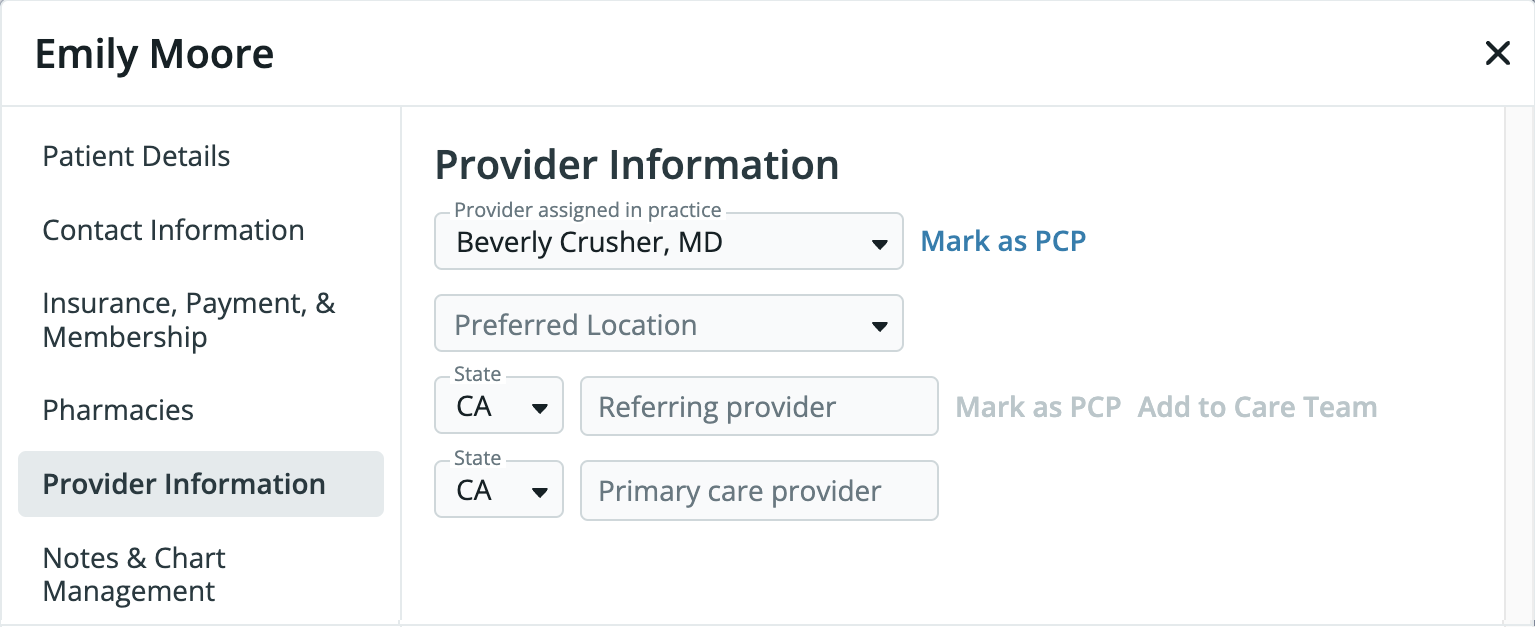
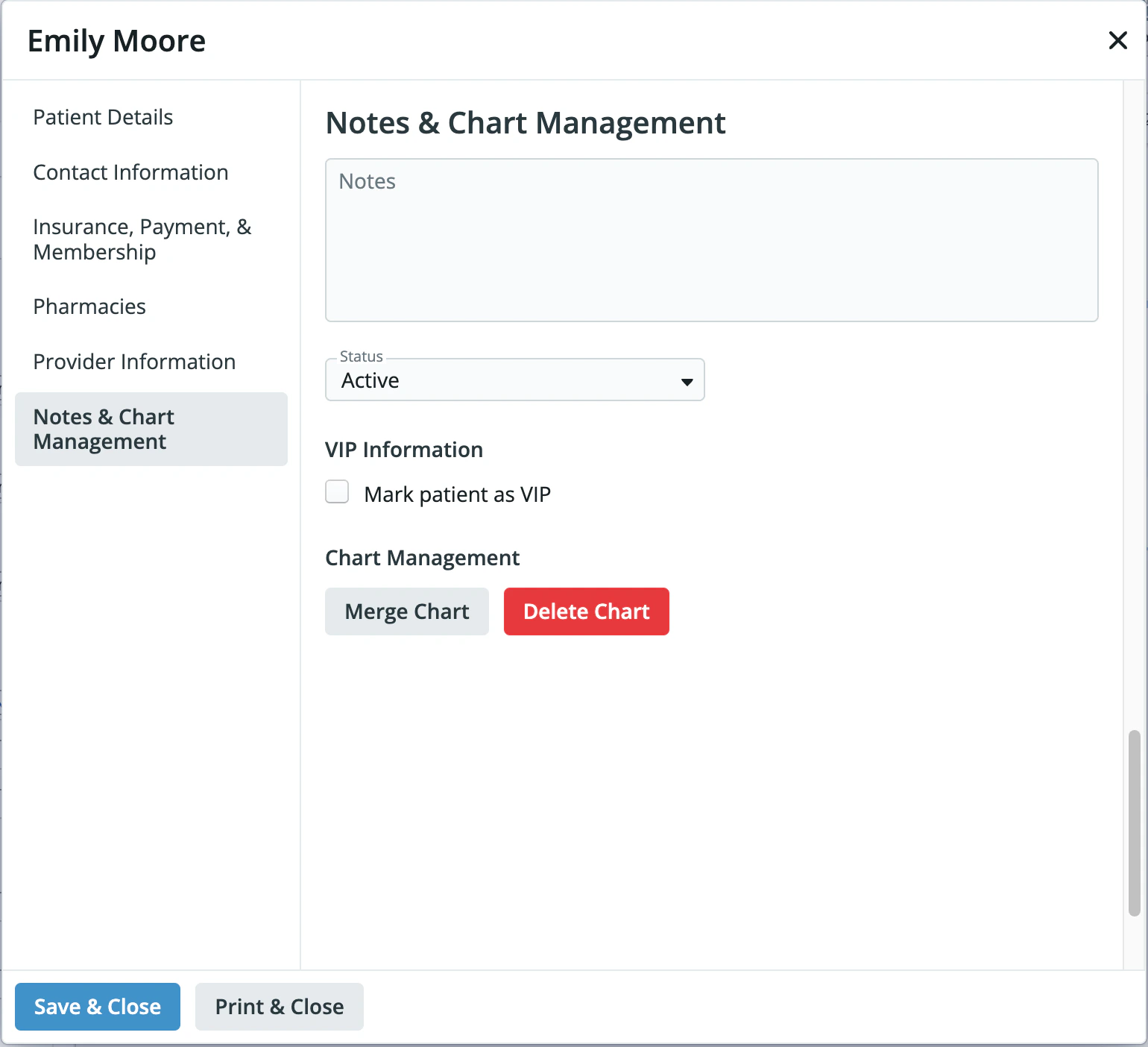 Read the following articles to learn more about managing the following demographics fields:
* [Patient Demographics Guide- Managing patient insurance](/articles/Managing-Insurance)
* [Insurance Card Image Upload Guide](/articles/Insurance-Card-Image-Upload-Guide)
* [Patient Chart Guide- Merging duplicate charts](/articles/merging-duplicate-charts)
## How do I delete a patient chart?
If a chart is a duplicate, use **Merge Chart** instead of deleting it — see [Patient Chart Guide- Merging duplicate charts](/articles/merging-duplicate-charts).
To delete a chart that isn't a duplicate (for example, one created in error):
1. Open the patient's chart and click the patient's name to open **Demographics**.
2. Go to the **Notes & Chart Management** tab.
3. Click **Delete Chart**.
**Exception:** Who can see and use the **Delete Chart** button depends on your practice's delete permission tier. See [User Accounts Guide- Configuring delete permissions](/articles/User-Accounts-Guide-Configuring-delete-permissions) for details.
If you delete a chart by mistake, you can restore it — see [Patient Chart Guide- Recovering deleted charts](/articles/patient-chart-guide-recovering-deleted-charts).
## What fields are visible in the Clinical Profile demographics view?
This is what the Clinical Profile view looks like for patient demographics. The patient's preferred full name (ex. Danny Jones) will display at the top of the chart and their legal full name (ex. Donald Jones) will display in the Additional Information section.
Read the following articles to learn more about managing the following demographics fields:
* [Patient Demographics Guide- Managing patient insurance](/articles/Managing-Insurance)
* [Insurance Card Image Upload Guide](/articles/Insurance-Card-Image-Upload-Guide)
* [Patient Chart Guide- Merging duplicate charts](/articles/merging-duplicate-charts)
## How do I delete a patient chart?
If a chart is a duplicate, use **Merge Chart** instead of deleting it — see [Patient Chart Guide- Merging duplicate charts](/articles/merging-duplicate-charts).
To delete a chart that isn't a duplicate (for example, one created in error):
1. Open the patient's chart and click the patient's name to open **Demographics**.
2. Go to the **Notes & Chart Management** tab.
3. Click **Delete Chart**.
**Exception:** Who can see and use the **Delete Chart** button depends on your practice's delete permission tier. See [User Accounts Guide- Configuring delete permissions](/articles/User-Accounts-Guide-Configuring-delete-permissions) for details.
If you delete a chart by mistake, you can restore it — see [Patient Chart Guide- Recovering deleted charts](/articles/patient-chart-guide-recovering-deleted-charts).
## What fields are visible in the Clinical Profile demographics view?
This is what the Clinical Profile view looks like for patient demographics. The patient's preferred full name (ex. Danny Jones) will display at the top of the chart and their legal full name (ex. Donald Jones) will display in the Additional Information section.
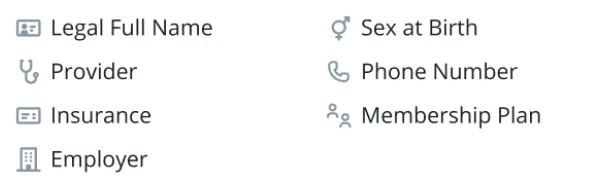
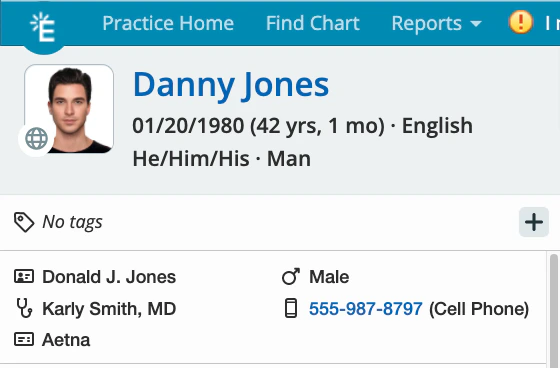 Here is a legend of all of the possible details that will display in the clinical profile if the corresponding fields are filled in and the corresponding icons for those fields.
Hover your mouse cursor over the icons to learn what each icon means.
Here is a legend of all of the possible details that will display in the clinical profile if the corresponding fields are filled in and the corresponding icons for those fields.
Hover your mouse cursor over the icons to learn what each icon means.
 ## Patient Notes icon
**Beta feature:** The feature described in this section is part of a beta release and is only available to a select number of practices.
A patient notes icon can appear in several places so you can see and jump to the **Notes** field from the demographics **Notes & Chart Management** tab without opening demographics manually.
Where the icon appears:
* The patient's Clinical Profile, next to the allergy and risk score badges.
* The appointment creation form on the Calendar, next to the patient name once a patient is selected.
* The appointment or event snapshot popover on the Calendar, next to the patient's date of birth.
How the icon behaves:
* The icon is gray when the patient has no notes and yellow with a filled background when notes are present.
* Hovering the icon shows a preview of the notes content (up to 300 characters), or "No patient notes" if the field is empty.
* Clicking the icon opens Demographics, scrolls to the **Notes & Chart Management** section, and places your cursor in the **Notes** field so you can start typing.
Whether the **Notes** field is shared on provider-facing letters and printouts that include a demographics page is controlled by your practice's **Share demographics notes with providers** setting. See [Security & Privacy Settings Overview — Demographics Notes](/articles/Security-and-Privacy-Settings-Overview#demographics-notes).
## Tips for using various demographics fields
### Legal Name vs. Full Name
* Legal Name= the patient's name as displayed on all government issued documents such as their Social Security Card or Passport
* Full Name= the name the patient wishes to be called that is different from their legal name
**Where each name is used**
When a patient has a Full Name (preferred/actual name) set, Elation uses it on patient-facing surfaces instead of their legal name. Clinical, compliance, payer, lab, and pharmacy workflows continue to use the legal name where required.
**Surfaces that use the Full Name (when set):**
* Patient Passport
* Patient Booking Site, booking confirmation, and booking patient form header
* Appointment confirmation SMS and phone confirmations
* Appointment cancellation emails
* SMS (text message) opt-in page and opt-in request emails
* Patient Forms
* Patient invoice and Membership communications
* Patient profile print view
* MIPS printouts
**Surfaces that continue to use the Legal Name:**
* Insurance claims and eligibility (payer-facing)
* Lab and pharmacy orders (including ePrescribing)
* QRDA-3 submissions to CMS
* Other clinical, compliance-sensitive, or regulatory workflows
### Pronouns
What does the patient want to be referred by when you are not using their name?
* He/Him/His
* She/Her/Hers
* They/Them/Theirs
* Option Not Listed
### Sex at birth
This field is usually used to designate the patient's sex at birth. We recommend storing the patient's legal sex as designated on government issues documents if you bill insurance companies.
* Female
* Male
* Intersex/other
* Unknown
**Gender**
How the patient identifies themselves
* Woman
* Man
* Transgender woman / trans feminine
* for patients who were assigned male at birth but identify with femininity
* Transgender man / trans masculine
* for patients who were assigned female at birth but identify with masculinity
* Non-binary / genderqueer / gender fluid
* for patients who may fluctuate gender expressions over their lifetime or express multiple various gender markers at the same time
* Two spirit
* for patients who identifies as having both a masculine and feminine spirit
* Option not listed
* Prefer not to say
### SSN (Social Security Number)
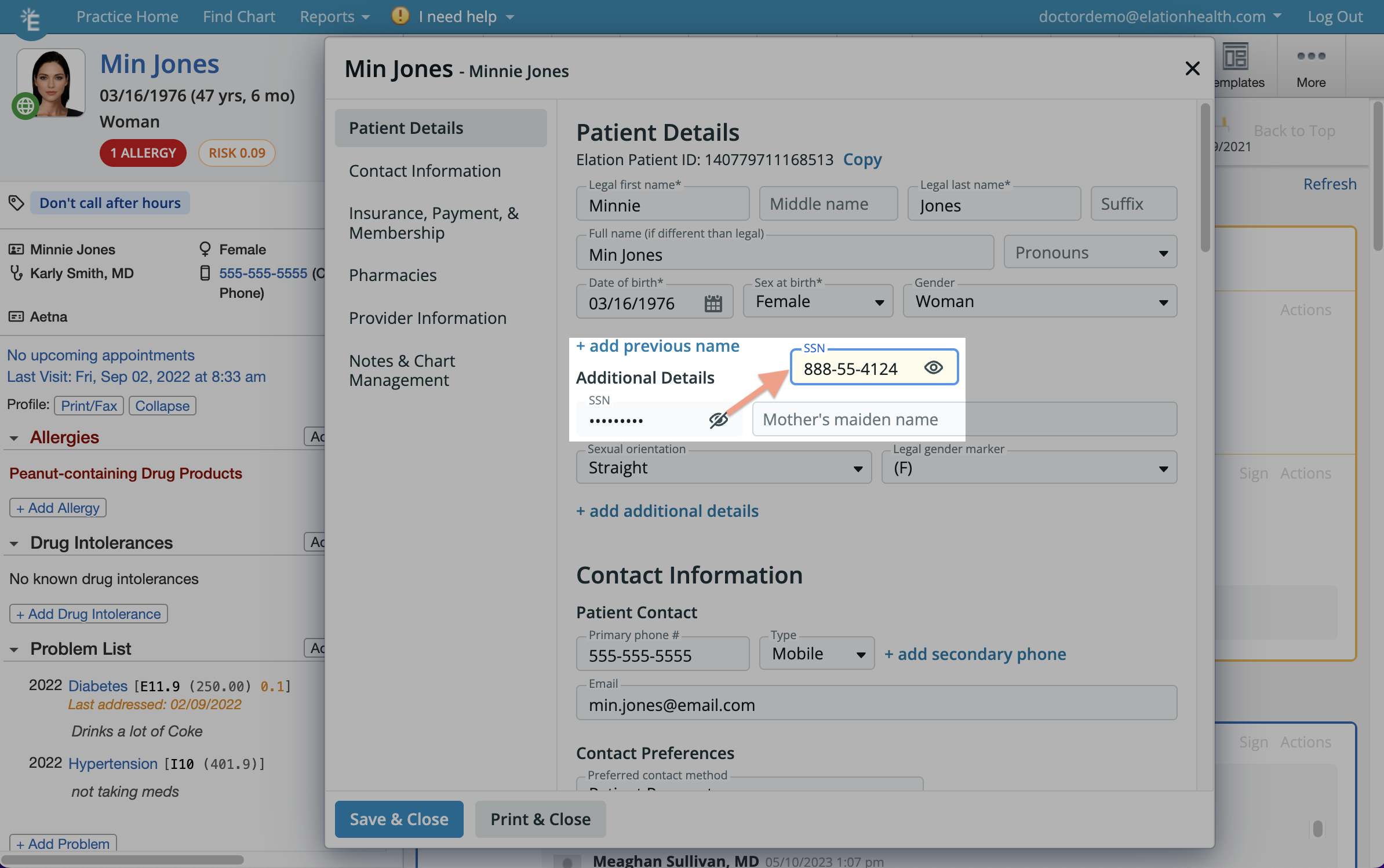
Once a patient chart is created, demographic's Social Security Number field will be masked until you click the **unhide** button to view it.
## Patient Notes icon
**Beta feature:** The feature described in this section is part of a beta release and is only available to a select number of practices.
A patient notes icon can appear in several places so you can see and jump to the **Notes** field from the demographics **Notes & Chart Management** tab without opening demographics manually.
Where the icon appears:
* The patient's Clinical Profile, next to the allergy and risk score badges.
* The appointment creation form on the Calendar, next to the patient name once a patient is selected.
* The appointment or event snapshot popover on the Calendar, next to the patient's date of birth.
How the icon behaves:
* The icon is gray when the patient has no notes and yellow with a filled background when notes are present.
* Hovering the icon shows a preview of the notes content (up to 300 characters), or "No patient notes" if the field is empty.
* Clicking the icon opens Demographics, scrolls to the **Notes & Chart Management** section, and places your cursor in the **Notes** field so you can start typing.
Whether the **Notes** field is shared on provider-facing letters and printouts that include a demographics page is controlled by your practice's **Share demographics notes with providers** setting. See [Security & Privacy Settings Overview — Demographics Notes](/articles/Security-and-Privacy-Settings-Overview#demographics-notes).
## Tips for using various demographics fields
### Legal Name vs. Full Name
* Legal Name= the patient's name as displayed on all government issued documents such as their Social Security Card or Passport
* Full Name= the name the patient wishes to be called that is different from their legal name
**Where each name is used**
When a patient has a Full Name (preferred/actual name) set, Elation uses it on patient-facing surfaces instead of their legal name. Clinical, compliance, payer, lab, and pharmacy workflows continue to use the legal name where required.
**Surfaces that use the Full Name (when set):**
* Patient Passport
* Patient Booking Site, booking confirmation, and booking patient form header
* Appointment confirmation SMS and phone confirmations
* Appointment cancellation emails
* SMS (text message) opt-in page and opt-in request emails
* Patient Forms
* Patient invoice and Membership communications
* Patient profile print view
* MIPS printouts
**Surfaces that continue to use the Legal Name:**
* Insurance claims and eligibility (payer-facing)
* Lab and pharmacy orders (including ePrescribing)
* QRDA-3 submissions to CMS
* Other clinical, compliance-sensitive, or regulatory workflows
### Pronouns
What does the patient want to be referred by when you are not using their name?
* He/Him/His
* She/Her/Hers
* They/Them/Theirs
* Option Not Listed
### Sex at birth
This field is usually used to designate the patient's sex at birth. We recommend storing the patient's legal sex as designated on government issues documents if you bill insurance companies.
* Female
* Male
* Intersex/other
* Unknown
**Gender**
How the patient identifies themselves
* Woman
* Man
* Transgender woman / trans feminine
* for patients who were assigned male at birth but identify with femininity
* Transgender man / trans masculine
* for patients who were assigned female at birth but identify with masculinity
* Non-binary / genderqueer / gender fluid
* for patients who may fluctuate gender expressions over their lifetime or express multiple various gender markers at the same time
* Two spirit
* for patients who identifies as having both a masculine and feminine spirit
* Option not listed
* Prefer not to say
### SSN (Social Security Number)
Once a patient chart is created, demographic's Social Security Number field will be masked until you click the **unhide** button to view it.
 ### Sexual Orientation
Which gender(s) is the patient sexually attracted to?
* Asexual
* Bisexual
* Gay
* Lesbian
* Straight
* Queer
* Option Not Listed
* Prefer Not to Say
**Legal gender marker**
The designation of an individual's sex on a birth record or other government issued document
* (F)= Female
* (M)= Male
* (X)= Nonbinary (a gender that is not exclusively male nor female)
* Unknown
### Patient Contact
The mobile phone and email address stored in this section is used for the following patient engagement features:
* [Automated appointment reminders](/articles/appointment-reminders)
* [Virtual Visit Instructions](/articles/Elation-Telehealth-powered-by-Zoom#VirtualVisitInstructions)
* [Patient Passport notifications](/articles/what-patient-passport-messaging-looks-like-to-a-patient#messagenotifications)
* [Payment updates](/articles/using-elation-to-securely-collect-patient-payments)
### Patient Address
This field is required for prescribing medications, (especially controlled substance medications) and ordering lab tests (especially [electronic lab ordering](/articles/labs-settings) ).
### Insurance
If you bill a patient's insurance company for services rendered, we recommend storing the patient's primary, secondary or tertiary insurance information in the Insurance section of the patient demographics. Learn more about storing insurance information in the [Patient Demographics Guide- Managing patient insurance](/articles/Managing-Insurance) .
### Pharmacies
The preferred pharmacies entered in this section will facilitate sending prescriptions electronically to pharmacies from Elation.
### Provider Information
The *Provider assign in practice* field determines which provider in the practice the patient will be assigned to in the [administrative reports](/articles/lightning-reports) . This field also determines which provider is assigned drafted orders when staff assist with drafting prescriptions, orders and referrals.
## Creating a new patient chart
To create a new patient chart:
1. Go to the [Practice Home](https://app.elationemr.com/patients/) page and click on the **New Chart** button in the gray navigation bar.
2. Fill in the patient's demographics details- especially the required fields of **legal first name**, **legal last name**, **date of birth**, **sex at birth** and **Provider assigned in practice**
:\*\*
3. click **Create & Open Chart** or **Create Chart** when done.
### Sexual Orientation
Which gender(s) is the patient sexually attracted to?
* Asexual
* Bisexual
* Gay
* Lesbian
* Straight
* Queer
* Option Not Listed
* Prefer Not to Say
**Legal gender marker**
The designation of an individual's sex on a birth record or other government issued document
* (F)= Female
* (M)= Male
* (X)= Nonbinary (a gender that is not exclusively male nor female)
* Unknown
### Patient Contact
The mobile phone and email address stored in this section is used for the following patient engagement features:
* [Automated appointment reminders](/articles/appointment-reminders)
* [Virtual Visit Instructions](/articles/Elation-Telehealth-powered-by-Zoom#VirtualVisitInstructions)
* [Patient Passport notifications](/articles/what-patient-passport-messaging-looks-like-to-a-patient#messagenotifications)
* [Payment updates](/articles/using-elation-to-securely-collect-patient-payments)
### Patient Address
This field is required for prescribing medications, (especially controlled substance medications) and ordering lab tests (especially [electronic lab ordering](/articles/labs-settings) ).
### Insurance
If you bill a patient's insurance company for services rendered, we recommend storing the patient's primary, secondary or tertiary insurance information in the Insurance section of the patient demographics. Learn more about storing insurance information in the [Patient Demographics Guide- Managing patient insurance](/articles/Managing-Insurance) .
### Pharmacies
The preferred pharmacies entered in this section will facilitate sending prescriptions electronically to pharmacies from Elation.
### Provider Information
The *Provider assign in practice* field determines which provider in the practice the patient will be assigned to in the [administrative reports](/articles/lightning-reports) . This field also determines which provider is assigned drafted orders when staff assist with drafting prescriptions, orders and referrals.
## Creating a new patient chart
To create a new patient chart:
1. Go to the [Practice Home](https://app.elationemr.com/patients/) page and click on the **New Chart** button in the gray navigation bar.
2. Fill in the patient's demographics details- especially the required fields of **legal first name**, **legal last name**, **date of birth**, **sex at birth** and **Provider assigned in practice**
:\*\*
3. click **Create & Open Chart** or **Create Chart** when done.

 ## Frequently Asked Questions (FAQ)
### Will Patients see their "Full Name" in any communications?
Yes, Patients will see their **Full name** displayed in all of the following Patient facing communications and forums:
* Patient Passport
* Booking Site
* Appointment reminders and confirmations
* Patient Forms
* Patient invoice communications
* Membership communications
* SMS (text message) Opt-In requests
### Can I search for a patient in the EHR using their "Full Name"?
Yes, you can search for a patient using their full name, in addition to their legal name. For example, if the patient’s legal name is “Brian Walter Mills” but their full name is “Bobby Mills”, searching for **Bobby** will return a match for **Brian Walter Mills**.
### Where do I enter a primary caregiver or legal guardian's name for a patient?
Patient Demographics does not have a dedicated field for a primary caregiver or legal guardian's name and relationship to the patient. As a workaround, enter this information in the **Emergency Contact** section, selecting the appropriate relationship (such as Guardian, Caregiver, or Parent). Use the **Notes** field in the demographics window for any additional details about the arrangement.
### Can I store more than one email address for a patient?
No, Elation only stores one active email address per patient chart. That single address is used for Patient Passport invitations and notifications, automated appointment reminders, Patient Forms links, and patient payment requests and receipts. If a patient wants to change which address is used, update the email address in the **Patient Contact** section of their Demographics.
## **Related Articles**
* [Patient Demographics Guide- Managing patient insurance](/articles/Managing-Insurance)
* [Insurance Card Image Upload Guide](/articles/Insurance-Card-Image-Upload-Guide)
* [Clinical Profile: A summary snapshot of the patient's health status](/articles/clinical-profile-record-patient-medical-history)
## Frequently Asked Questions (FAQ)
### Will Patients see their "Full Name" in any communications?
Yes, Patients will see their **Full name** displayed in all of the following Patient facing communications and forums:
* Patient Passport
* Booking Site
* Appointment reminders and confirmations
* Patient Forms
* Patient invoice communications
* Membership communications
* SMS (text message) Opt-In requests
### Can I search for a patient in the EHR using their "Full Name"?
Yes, you can search for a patient using their full name, in addition to their legal name. For example, if the patient’s legal name is “Brian Walter Mills” but their full name is “Bobby Mills”, searching for **Bobby** will return a match for **Brian Walter Mills**.
### Where do I enter a primary caregiver or legal guardian's name for a patient?
Patient Demographics does not have a dedicated field for a primary caregiver or legal guardian's name and relationship to the patient. As a workaround, enter this information in the **Emergency Contact** section, selecting the appropriate relationship (such as Guardian, Caregiver, or Parent). Use the **Notes** field in the demographics window for any additional details about the arrangement.
### Can I store more than one email address for a patient?
No, Elation only stores one active email address per patient chart. That single address is used for Patient Passport invitations and notifications, automated appointment reminders, Patient Forms links, and patient payment requests and receipts. If a patient wants to change which address is used, update the email address in the **Patient Contact** section of their Demographics.
## **Related Articles**
* [Patient Demographics Guide- Managing patient insurance](/articles/Managing-Insurance)
* [Insurance Card Image Upload Guide](/articles/Insurance-Card-Image-Upload-Guide)
* [Clinical Profile: A summary snapshot of the patient's health status](/articles/clinical-profile-record-patient-medical-history)