> ## Documentation Index
> Fetch the complete documentation index at: https://help.elationhealth.com/llms.txt
> Use this file to discover all available pages before exploring further.
# Patient Forms Guide - Managing forms responses
## Overview
### What happens after forms are completed?
Completed forms will automatically appear in the Outstanding Items section of the patient’s chart. Each form will show up as an individual ‘Report’ that can be reviewed and signed off, along with the date and time it was completed.
By default, only Provider Level Users can sign off on forms responses. For each Patient Form, Admin Level Users can enable the **Allow staff sign-off for this form** setting to let Staff Level Users sign off on that form's responses. This is ideal for forms that generally do not require provider oversight, such as forms for demographics or insurance collection. [Click here for information about this setting](/articles/Patient-Forms-Guide#specifying-who-can-sign-off-on-completed-forms).
## Workflow Instructions
### Reviewing and exporting responses to the chart
**1**
Open the patient’s chart. Each completed form will appear as its own report under **Outstanding Items**.
* By default, completed Patient Forms are filed under the **Patient Forms** [report category](/articles/report-types).
1. To file the forms under a different report category, click **Actions** -> **Edit Details** for each form.
2. To view all completed Patient Forms at once, click on **Reports** -> **Patient Forms** at the top of the chart.
**2**
Click on the form’s name to open and review the patient’s responses.
* Both providers and staff will have visibility of all the question texts and answers.
* Look out for any unanswered questions. Questions cannot be set as required which means patients can skip questions and submit a partially completed form.
**What appears on a completed form:** the section title, each question's text, and the patient's answers. Section **Intro Text** is not included — it is only shown to the patient while they complete the form. For signature sections, click **View Full Text** above the signature to expand the agreement language the patient consented to; it is collapsed by default. The printed version shows the agreement text inline.
**3**
If you’d like to export any responses to the chart, check the checkbox to the left of the response.
**4**
**Exception:** Some forms responses can only be exported to specific areas of the chart, even if you select **Clinical Profile** or **Visit Note**. (E.g. **Demographics: Personal Pronouns** or **Insurance Card Images - Primary**.)
Choose whether you are exporting to the **Clinical Profile**,**Visit Note** or **Clinical Profile and Visit Note**.
1. After exporting, you can modify the wording of the responses in the chart.
**5**
Click **Export selected** .
**6**
Sign off on the completed form(s) to add them to the patient's Chronological Record.
* By default, only Provider Level Users can sign off on forms responses. For each form, Admin Level Users can enable the **Allow staff sign-off for this form** setting to let Staff Level Users sign off on its form responses. [Click here for information about this setting](/articles/Patient-Forms-Guide#specifying-who-can-sign-off-on-completed-forms).
### Handling responses for special questions
#### Processing patient-reported medications in forms
To export a medication:
| **1** | Click **Match to med** . |
| - | - |
| **2** | Search for the medication in the database and select the appropriate match from the list. |
| **3** | Click **Save** . |
| **4** | Repeat steps 1 to 3 for each patient-reported medication you want to export. |
#### Processing insurance card images in forms
| **1** | AI-powered algorithms will extract the **Group ID** and **Member ID** from the insurance card images and pre-populate those fields for you. Compare the information in the images to what you see in the **Group ID** and **Member ID** fields and then compare the data to what you already have stored for the patient to see if updates are needed. 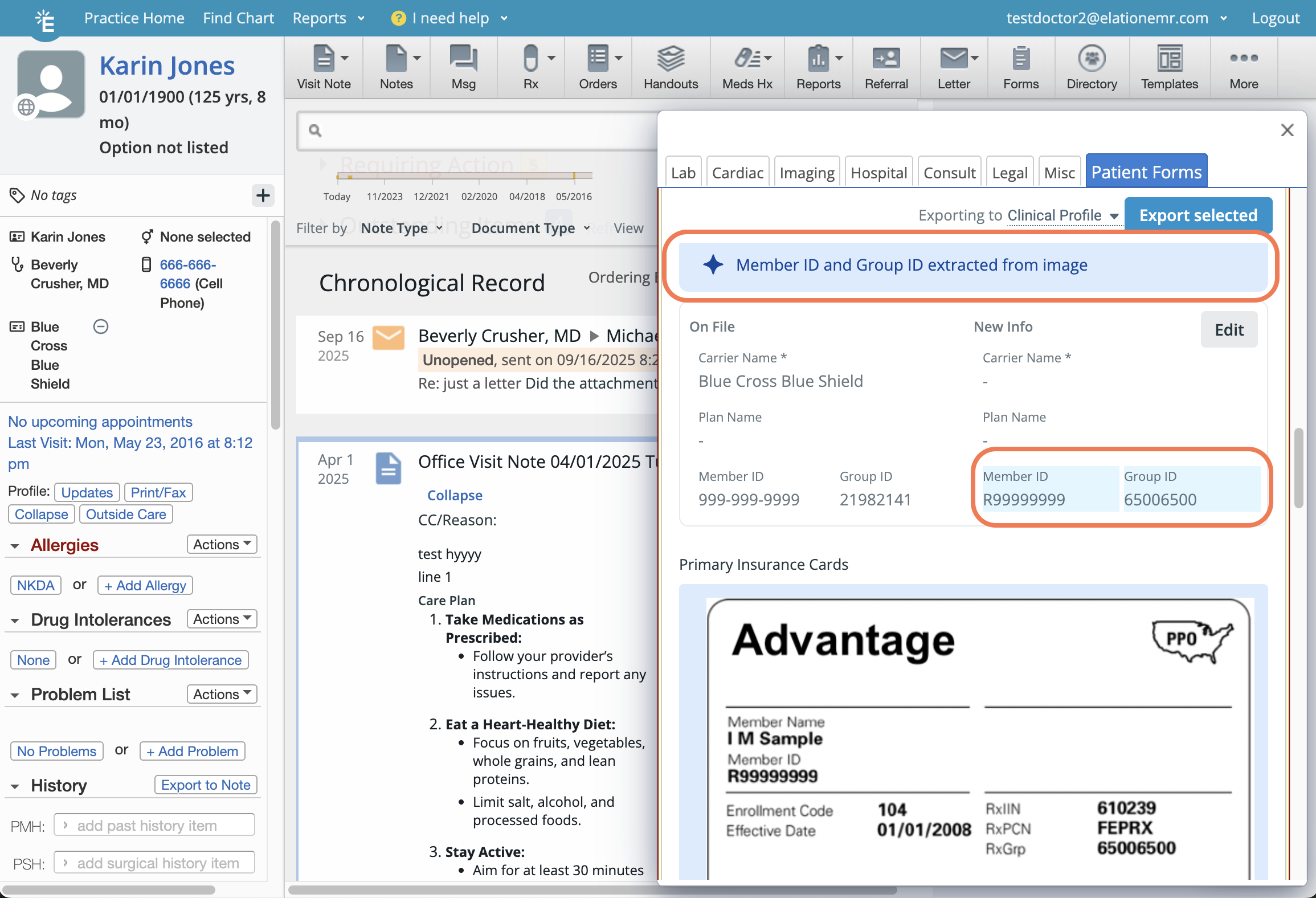 |
| - | - |
| **2** | Click **Edit** to update the insurance information in your patient's chart with the information on the new card(s). |
| **3** | Check off the box for insurance card images and click **Export selected** to export the images to your patient's demographics. Insurance card images can only be exported to the Demographics section even if you choose **Clinical Profile** or **Visit Note**. |
You must update the **Insurance Carrier Name**, **Plan Name**, **Group ID** and **Member ID** information on file before you can export the images to the patient's demographics. This is to make sure your patients always have the correct insurance data stored in their chart.
Historical insurance card images will be moved to the **Historical Insurance Records** section of the patient’s demographics.
## Frequently Asked Questions
### Reviewing Completed Patient Forms
#### Can we change where the patient's response exports to in the Clinical Profile?
Yes! For the **Other** question topic, you can customize where in the Clinical Profile you'd like to export the patient's response. First add the **Other** question topic to your form. Then click the **Export to** dropdown and select the section.
#### Can the answers submitted for one patient be shared across multiple patient charts?
Currently, answers will only be exported to the chart of the patient who filled it out. For example, the family history from one form that may apply to multiple children cannot be exported across multiple charts.
#### Why does my completed consent form only show the patient's signature, and not the consent language?
Section-level **Intro Text** is only shown to the patient while they are filling out the form — it is not included in the completed form in the chart or on the printout. If your consent language is in Intro Text, move it into the **agreement question** of the Patient Signature section instead; question text does appear on the completed form and on the printout. In the chart, the agreement text sits behind the **View Full Text** control above the signature, which is collapsed by default — click it to expand.
#### Why does the printed form show more than the chart view?
On the printed or faxed copy, the agreement text appears inline. In the chart it is collapsed behind **View Full Text** above the signature. The underlying content is the same.
#### Can a staff user sign off on forms in the patient's chart?
Yes, if an Admin enables it on that specific form. For each Patient Form, Admin Level Users can check the **Allow staff sign-off for this form** box to let Staff Level Users sign off on that form's responses. The setting is per form and is off by default on newly created forms. [Click here for information about this setting](/articles/Patient-Forms-Guide#specifying-who-can-sign-off-on-completed-forms).
#### I can't select the insurance card images from the completed forms to export, why?
You must update the Insurance **Carrier Name**, **Plan Name**, **Group ID** or **Member ID** information on file by clicking **Edit** before you can export the images to the patient's demographics. This is to make sure your patients always have the correct insurance data stored in their chart.
#### Is there a report that lists forms (e.g. PHQ-9, GAD-7) that patients have returned but not yet filed, across multiple patients?
Not as a dedicated aggregate report. Completed forms appear in each patient's **Outstanding Items** queue at the top of their chart until they're reviewed and filed. For a practice-wide, cross-patient to-do list, use the **Requiring Action** section on the **Practice Home** page, which you can filter by queue (e.g. Reports, Office Messages) and switch between users with the **View queue for** dropdown.
#### Can I configure a form to export responses to the Vaccinations section of the Clinical Profile?
Not currently. Patient Forms responses cannot be exported to the Vaccinations section at this time. As a workaround, copy the information from the completed form and manually enter it into the Vaccinations section.
## Related Articles
* [Patient Forms Introduction](/articles/Getting-Started-with-Patient-Forms)
* [Patient Forms Guide - Creating and managing Patient Forms](/articles/Patient-Forms-Guide)
* [Patient Forms Guide - Sending forms to patients](/articles/Sending-forms-to-patients)
* [Patient Forms Guide - Receiving and filling out forms as a patient](/articles/Receiving-and-filling-out-forms-as-a-patient)
|
| - | - |
| **2** | Click **Edit** to update the insurance information in your patient's chart with the information on the new card(s). |
| **3** | Check off the box for insurance card images and click **Export selected** to export the images to your patient's demographics. Insurance card images can only be exported to the Demographics section even if you choose **Clinical Profile** or **Visit Note**. |
You must update the **Insurance Carrier Name**, **Plan Name**, **Group ID** and **Member ID** information on file before you can export the images to the patient's demographics. This is to make sure your patients always have the correct insurance data stored in their chart.
Historical insurance card images will be moved to the **Historical Insurance Records** section of the patient’s demographics.
## Frequently Asked Questions
### Reviewing Completed Patient Forms
#### Can we change where the patient's response exports to in the Clinical Profile?
Yes! For the **Other** question topic, you can customize where in the Clinical Profile you'd like to export the patient's response. First add the **Other** question topic to your form. Then click the **Export to** dropdown and select the section.
#### Can the answers submitted for one patient be shared across multiple patient charts?
Currently, answers will only be exported to the chart of the patient who filled it out. For example, the family history from one form that may apply to multiple children cannot be exported across multiple charts.
#### Why does my completed consent form only show the patient's signature, and not the consent language?
Section-level **Intro Text** is only shown to the patient while they are filling out the form — it is not included in the completed form in the chart or on the printout. If your consent language is in Intro Text, move it into the **agreement question** of the Patient Signature section instead; question text does appear on the completed form and on the printout. In the chart, the agreement text sits behind the **View Full Text** control above the signature, which is collapsed by default — click it to expand.
#### Why does the printed form show more than the chart view?
On the printed or faxed copy, the agreement text appears inline. In the chart it is collapsed behind **View Full Text** above the signature. The underlying content is the same.
#### Can a staff user sign off on forms in the patient's chart?
Yes, if an Admin enables it on that specific form. For each Patient Form, Admin Level Users can check the **Allow staff sign-off for this form** box to let Staff Level Users sign off on that form's responses. The setting is per form and is off by default on newly created forms. [Click here for information about this setting](/articles/Patient-Forms-Guide#specifying-who-can-sign-off-on-completed-forms).
#### I can't select the insurance card images from the completed forms to export, why?
You must update the Insurance **Carrier Name**, **Plan Name**, **Group ID** or **Member ID** information on file by clicking **Edit** before you can export the images to the patient's demographics. This is to make sure your patients always have the correct insurance data stored in their chart.
#### Is there a report that lists forms (e.g. PHQ-9, GAD-7) that patients have returned but not yet filed, across multiple patients?
Not as a dedicated aggregate report. Completed forms appear in each patient's **Outstanding Items** queue at the top of their chart until they're reviewed and filed. For a practice-wide, cross-patient to-do list, use the **Requiring Action** section on the **Practice Home** page, which you can filter by queue (e.g. Reports, Office Messages) and switch between users with the **View queue for** dropdown.
#### Can I configure a form to export responses to the Vaccinations section of the Clinical Profile?
Not currently. Patient Forms responses cannot be exported to the Vaccinations section at this time. As a workaround, copy the information from the completed form and manually enter it into the Vaccinations section.
## Related Articles
* [Patient Forms Introduction](/articles/Getting-Started-with-Patient-Forms)
* [Patient Forms Guide - Creating and managing Patient Forms](/articles/Patient-Forms-Guide)
* [Patient Forms Guide - Sending forms to patients](/articles/Sending-forms-to-patients)
* [Patient Forms Guide - Receiving and filling out forms as a patient](/articles/Receiving-and-filling-out-forms-as-a-patient)